
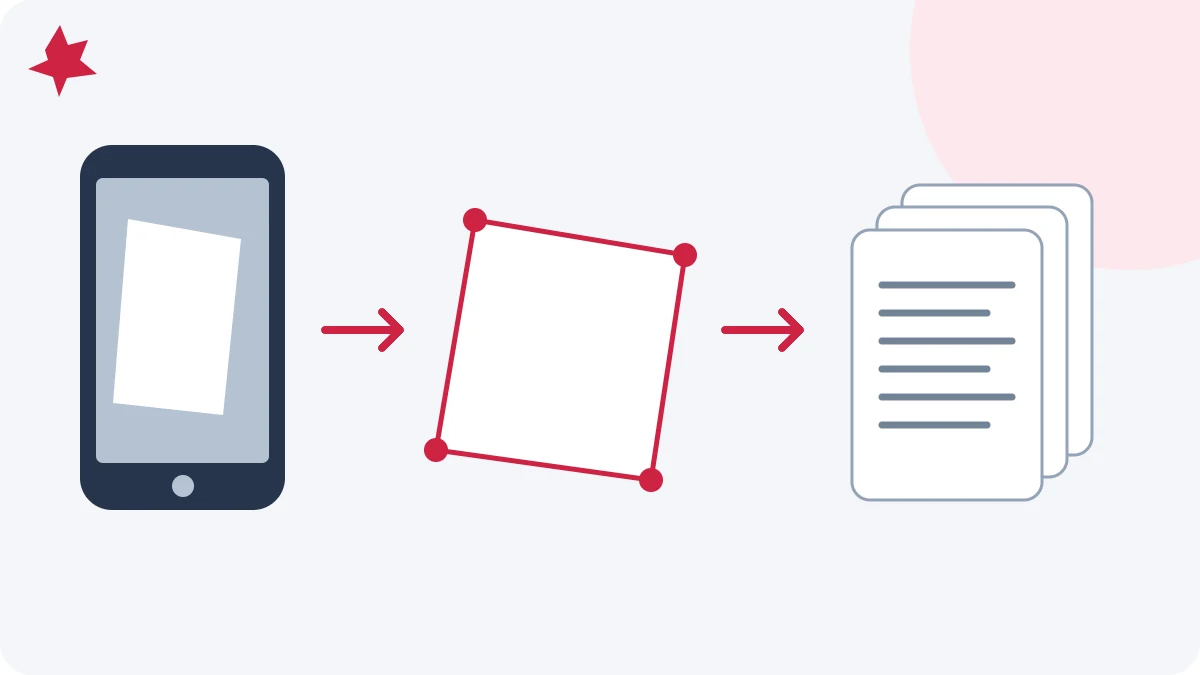
How to scan documents to PDF with your phone
Photograph paper, adjust page corners, correct perspective and arrange a readable multipage PDF on your phone.
Read How to scan documents to PDF with your phoneYOUR EVERYDAY PDF WORKSPACE
All the PDF tools you need, in one place. Choose a tool below to organize, convert, or finish your document.
FROM FILES TO FINISHED
Preview the pages, make your changes, and leave with a PDF ready to share.
PDF, Word, JPEG, PNG, or WebP · Up to 20 files and 60 pages
PDF previews and page edits stay on this device. Word conversion, compression, and text editing send the document to our server. File handling details
Drag pages to reorder. On a keyboard or phone, use the arrows below each page. Changes may affect existing forms or digital signatures; keep the original.
Compression and text editing use the server. Text editing opens the Word-style editor and may reflow the layout.
Check small text and fine lines before sharing. Your original files are unchanged.
Find the right tool for the next step in your document.
Combine files, separate sections, remove mistakes, and fix page order before sharing or printing.
Move between PDF and common office or image formats without reopening the original application.
Add simple finishing touches, fix presentation issues, and review visual changes before a final handoff.
Handle sensitive PDFs more carefully, prepare records, and keep final deliverables easier to manage.
Need more context before you start? Visit the FAQ, learn about the product on the About page, or browse the HTML sitemap for a full index of tools and guides.
Photograph paper, adjust page corners, correct perspective and arrange a readable multipage PDF on your phone.
Read How to scan documents to PDF with your phone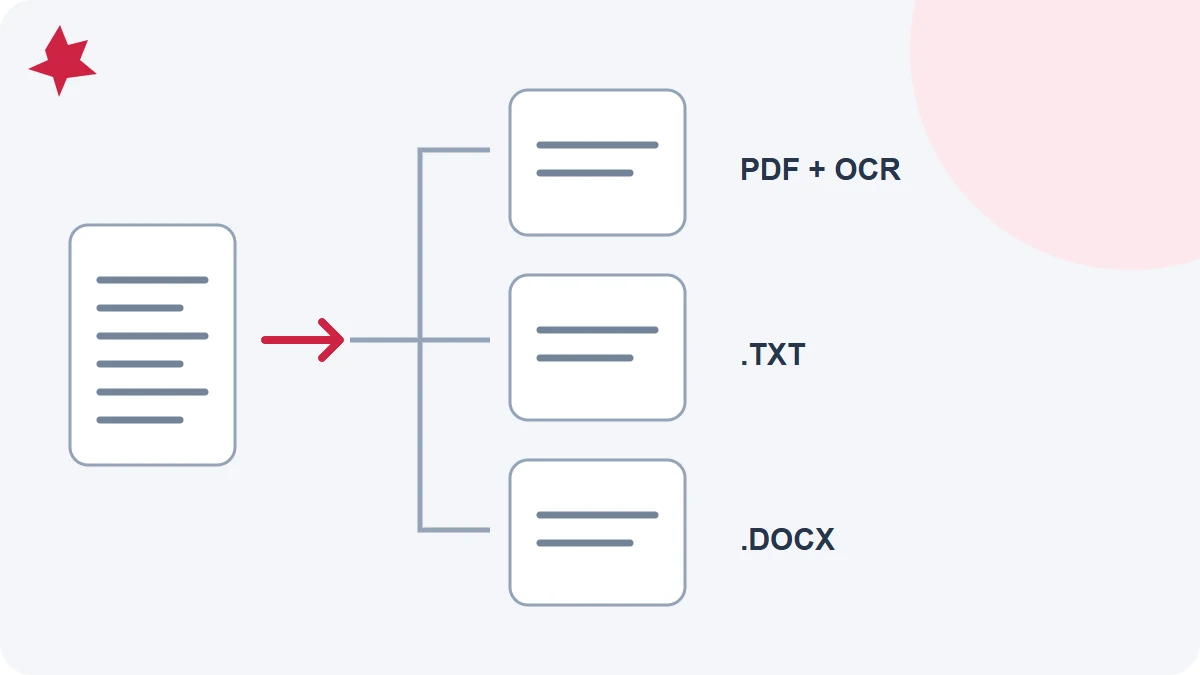
Choose recognition, text extraction or Word conversion according to your source document and the result you need.
Read OCR PDF vs PDF to Text vs PDF to Word: which should you use?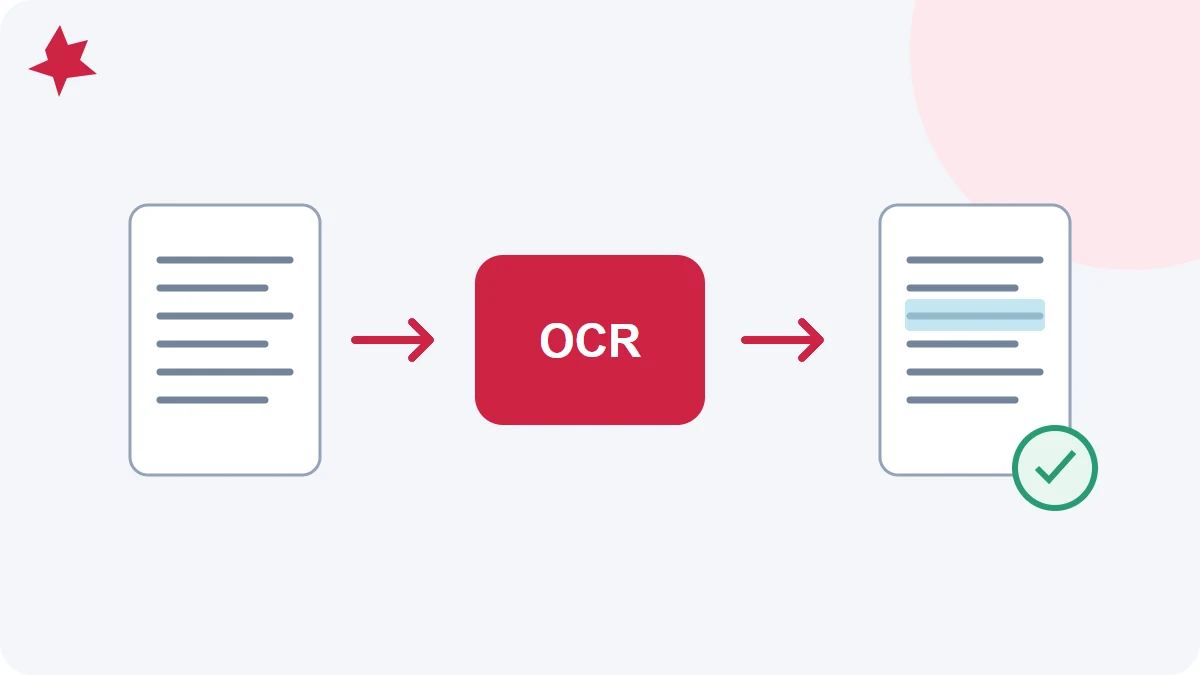
Add a searchable text layer to a scanned PDF, check recognized words and choose a useful next step.
Read How to make a scanned PDF searchable with OCR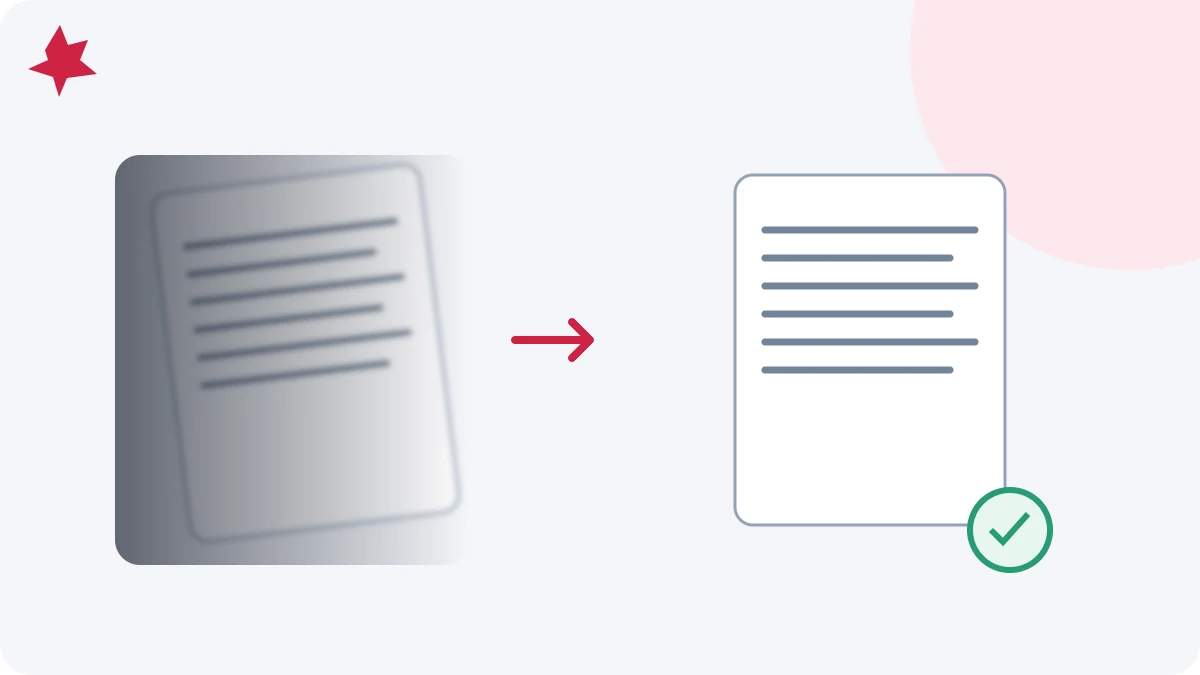
Improve focus, lighting, crop and language selection before OCR, then verify the recognized text against the scan.
Read How to get better OCR results from phone scans
Fix extracted PDF data in Excel: check shifted columns, text numbers, leading zeros, dates and totals while preserving a raw copy.
Read Clean PDF-to-Excel data: numbers, columns and totals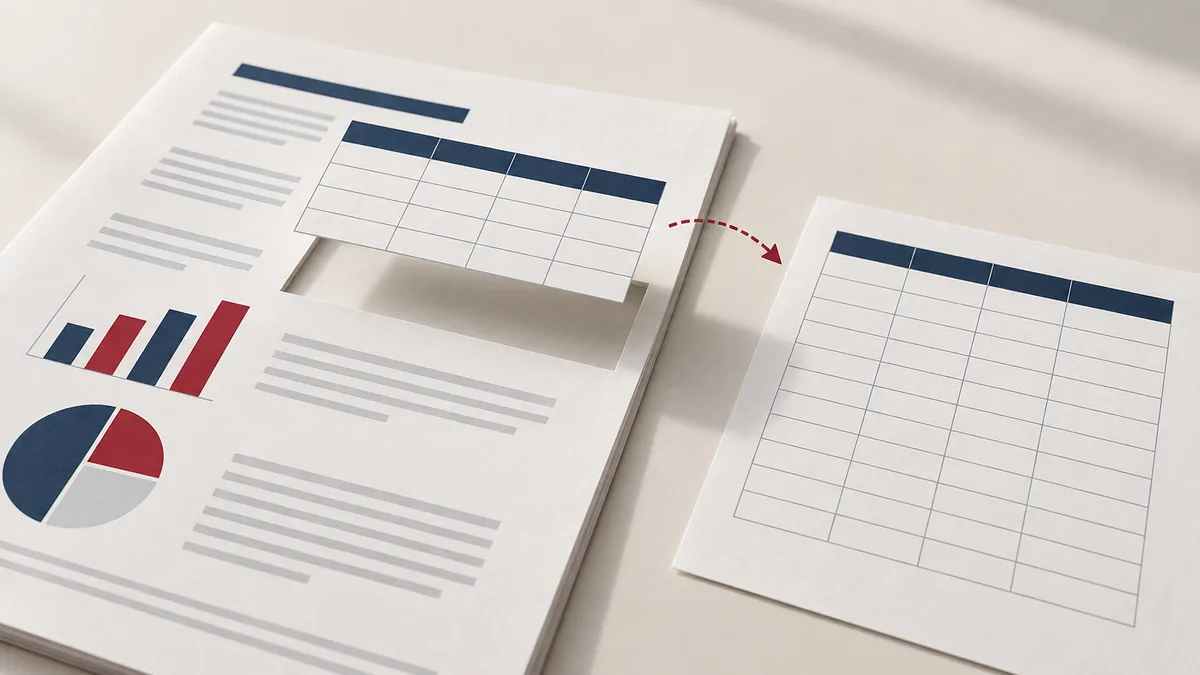
Prepare PDF tables for Excel extraction. Understand scanned pages, worksheet layout, missing cells and the checks to make before using the data.
Read Extract PDF tables to Excel: prepare and check your file
Accounts are optional. Core PDF tools still work without signing in.
Continue with Google