
Crop PDF
Crop PDF pages online to trim margins, remove scanner borders, and clean up the visible page area.
Files are sent to PDFMaple’s server when you run processing or export. Some previews and page edits run on your device. File handling and retention
1 Select your files
2 Process & download
Learn more about Crop PDF
What a clean crop should improve
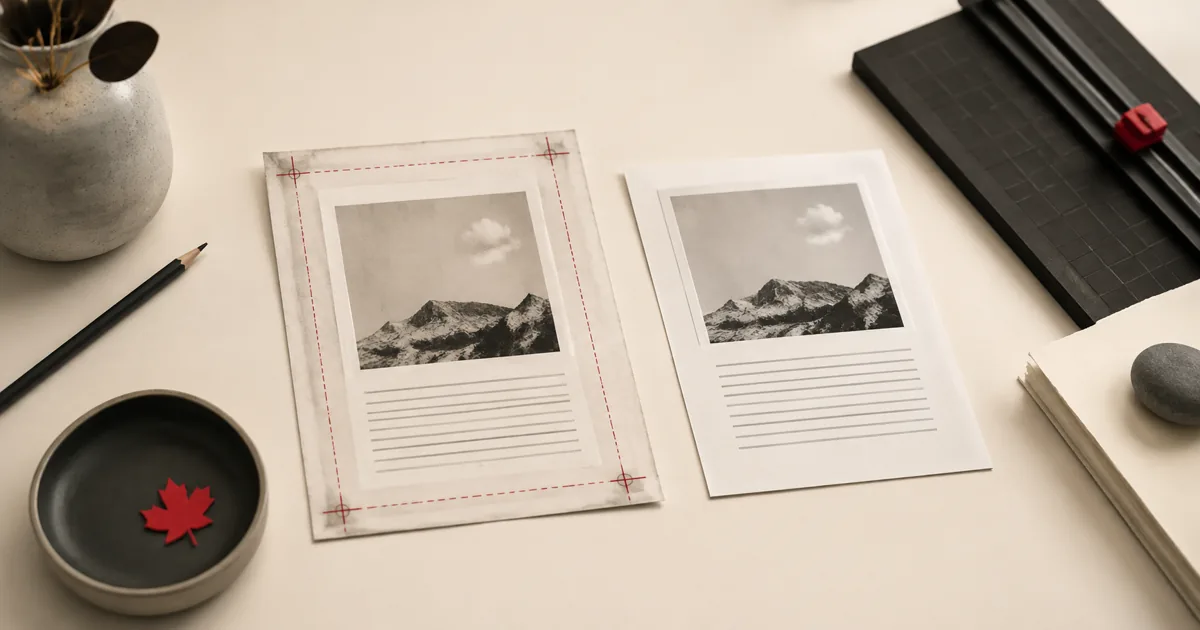
Crop PDF is about tightening the visible page area so the document looks cleaner and wastes less space. A good crop removes scanner borders, excess white margins, or uneven edges without cutting into the real content people need to read.
It is most useful on scans, photographed pages, and exported PDFs with awkward borders that make the file feel unfinished or harder to print cleanly.
When cropping is the best cleanup step
- Trim margins after scanning to remove excess whitespace.
- Tighten the visible page area for cleaner printing and easier reading.
- Remove scanner borders or edge noise without recreating the source file.
Use cropping when the content is correct but the page frame is messy. It is the right move when the document looks fine in the middle but the edges are distracting, inconsistent, or wasteful.
How to trim margins carefully
- Upload the PDF whose margins or visible page area you want to trim.
- Adjust crop values gradually so you remove empty margins without cutting into the real content.
- Click Run tool and let processing finish without closing the tab mid-task.
- Open the cropped PDF and check page edges on several pages before you archive or print it.
Cropping works best in small, measured adjustments. It is easier to trim a little more after review than to recover content that was cut off because the initial crop was too aggressive.
Margin checks before you keep the result
- Review the first, middle, and last pages to make sure the crop feels consistent across the file.
- Look closely at headers, footers, page numbers, and signatures near the page edge before downloading the result.
- Check print preview if the file will be printed, because a crop that looks neat on screen can still feel tight on paper.
The success test for cropping is simple: the document should feel cleaner, not smaller. If any important element now sits too close to the edge, the crop probably went a little too far.
Cropping mistakes that cut too much
- Cropping based on one representative page even though later pages have wider margins or stamps near the edges.
- Removing edge whitespace that was actually protecting handwritten notes, seals, or page numbers from being clipped.
- Using crop as a substitute for fixing skewed scans or wrong page orientation when those issues need separate steps.
Aggressive cropping creates the kind of error people notice immediately and forgive slowly. When in doubt, leave a little more breathing room and prioritize safety over maximum trim.
Print and scan-quality notes
Cropping changes presentation, not the underlying text or meaning. If the file is sensitive, a cleaner page edge does not change who should or should not receive the document.
Messy scans often need a chain of cleanup steps. Rotate can fix direction, crop can trim borders, and compression can reduce size; using them in the right order usually produces the strongest final result.