
Crop a PDF: trim margins and clean up scanned documents
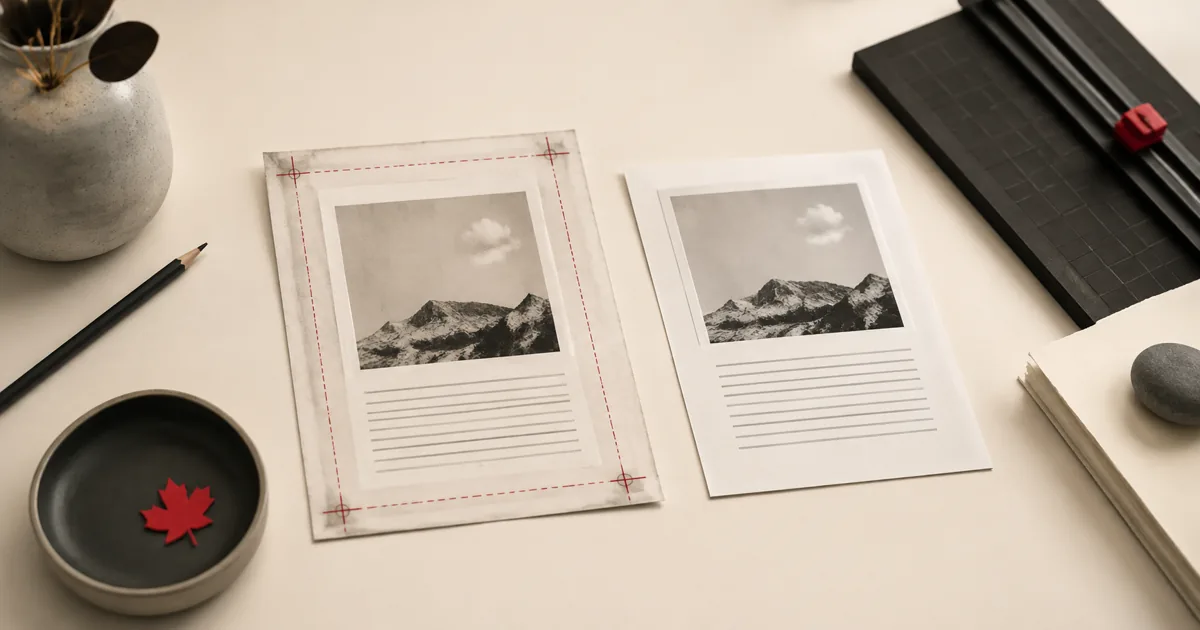
Cropping is usually about cleanup, not design. The goal is to remove scanner borders, oversized white margins, or uneven edges so the page reads more cleanly when it is printed, uploaded, or reviewed.
When to use Crop PDF
- Remove excess white margins from scans.
- Trim pages to fit better on mobile screens.
- Align page edges after scanning a book or contract.
- Create space for annotations or page numbers.
Step-by-step: Crop PDF in PDFMaple
- Open Crop PDF and upload your file.
- Set margins in points (pt). Remember: 72 pt = 1 inch.
- Run the tool to apply the crop.
- Download the cropped PDF and verify important content wasn’t cut.
Pro tips for better results
- Start small (like 10–20 pt) and adjust if needed—cropping is easy to redo.
- Crop before adding page numbers or watermarks to improve placement.
- If your scan is crooked, rotate first, then crop.
- Cropping can slightly reduce file size by removing unused areas.
Real-world use cases for crop a PDF
Most problems in this workflow appear after the file leaves your screen. A good outcome here is pages that keep the real content while losing distracting empty edges or border noise.
Business and operations
Teams crop PDFs to remove oversized white borders from scans before sharing or printing internal packets. That prevents a small presentation or labeling issue from turning into a resend when the document is already near the finish line.
Student projects
A student may clean up photographed notes so the pages feel tighter and more readable in the final PDF. That helps the submitted version look intentional and complete instead of obviously last-minute.
Legal and admin work
Administrative records often benefit from cropping when scanner borders or shadowed edges distract from the actual document. That matters because even tiny visual corrections can affect how easy a record is to review later.
Freelancer delivery
Designers and consultants crop PDFs to improve presentation when a scan includes messy desk edges or uneven framing. That keeps the delivered copy polished without sending the client back into the source file.
Personal paperwork
People frequently crop scanned forms and receipts so the result looks cleaner in a portal upload or email attachment. That makes the final file easier to read and use without forcing you into a bigger editing workflow.
Expert tips that save rework
Light PDF edits feel simple, but tiny placement or visibility mistakes are exactly what cause resend requests. With crop a pdf: trim margins and clean up scanned documents, the review that matters most is whether the change sits where the next person expects to see it.
- Crop conservatively first: It is easier to trim a little more than to discover you cut into page content. Start with small adjustments and review the result.
- Use the same crop logic across similar pages: If every page in a packet gets a slightly different crop, the file feels inconsistent. A uniform result usually looks more professional.
- Watch page numbers and signatures near the edge: Those are the first elements to disappear when the crop is too aggressive. Check them before you accept the output.
- Crop after rotation if orientation is wrong: Getting the page upright first makes it easier to judge the margins accurately. The cleanup is more predictable in the correct orientation.
- Print one page if paper output matters: A crop that feels fine on screen can look tighter in print. One paper test removes the guesswork.
If you only have time for one review, check whether any text near the edge was clipped and whether the crop feels consistent across pages. That is usually the point where a rushed handoff creates avoidable back-and-forth.
Is it safe to upload your files?
For this kind of workflow, the practical security questions are straightforward: is the connection encrypted, are the files temporary, and is the service treating the document as job input rather than as content to keep? PDFMaple uses HTTPS/TLS for upload and download so the transfer is protected in transit. That is the practical baseline people want when the documents include things like phone scans, office scans, forms, and documents with uneven borders.
Files are processed on our server to create your output. Ordinary conversion workspaces are removed after the response; interactive editing needs temporary session storage. Read the file retention and privacy details before uploading sensitive documents.
Online tool vs desktop software — which should you use?
For most one-off jobs, the browser is the fastest path because the file can be fixed and downloaded without a longer software setup cycle. That matters most when you are on a borrowed machine, a phone, or a laptop that does not have Acrobat installed. For cropping a PDF, that usually means an online tool is enough when the task is occasional and deadline-driven.
The desktop route is stronger when you need precise print production, repeated batch cleanup, and advanced page box management. For routine document chores, though, the lighter online path is often the more sensible choice because it gets you to the output faster.
- Best for one-off document chores
- Practical on mobile or remote setups
- No extra software to maintain
- Good when speed matters more than deep control
- Complex editing beyond the immediate task
- Managed enterprise or compliance setups
- Heavier production workflows
- Situations where local-only control is required
Frequently asked questions
What are points (pt)?
Points are a PDF measurement unit. 72 points equal 1 inch. So 36 pt is about half an inch. Open the result once more and inspect the pages you changed so you know the edit sits exactly where you intended.
Will crop permanently delete content?
Cropping changes the visible area. Content outside the crop may still exist in the PDF structure, but it won’t display in most viewers. Open the result once more and inspect the pages you changed so you know the edit sits exactly where you intended.
Can I crop only some pages?
This tool applies consistent margins. For complex page-by-page cropping, you may need advanced editing software. Open the result once more and inspect the pages you changed so you know the edit sits exactly where you intended.
Does cropping a PDF remove content permanently?
It changes the visible page area in the output you create, so from a practical sharing standpoint you should treat the crop as real. That is why it is best to keep the original file until you are sure the result is correct. A conservative first pass is usually the safest workflow.
Should I crop before or after compression?
Usually before. Cleaning the page area first can reduce wasted border space and make the final compression step more meaningful. It also helps you judge the finished layout before you optimize size.
What is the biggest cropping mistake?
Cutting too close to the real content. Signatures, footnotes, page numbers, and document edges are easy to trim by accident. Review those areas carefully.
What to do next
This task is usually one step in a longer document process. Most people go from cropping a PDF into printing, compressing, or merging the cleaned pages with other documents.