
Add page numbers
Add page numbers to PDFs online. Choose the position, starting number, and download a clean numbered copy.
Files are sent to PDFMaple’s server when you run processing or export. Some previews and page edits run on your device. File handling and retention
1 Select your files
2 Process & download
Learn more about Add page numbers
What clear numbering should achieve
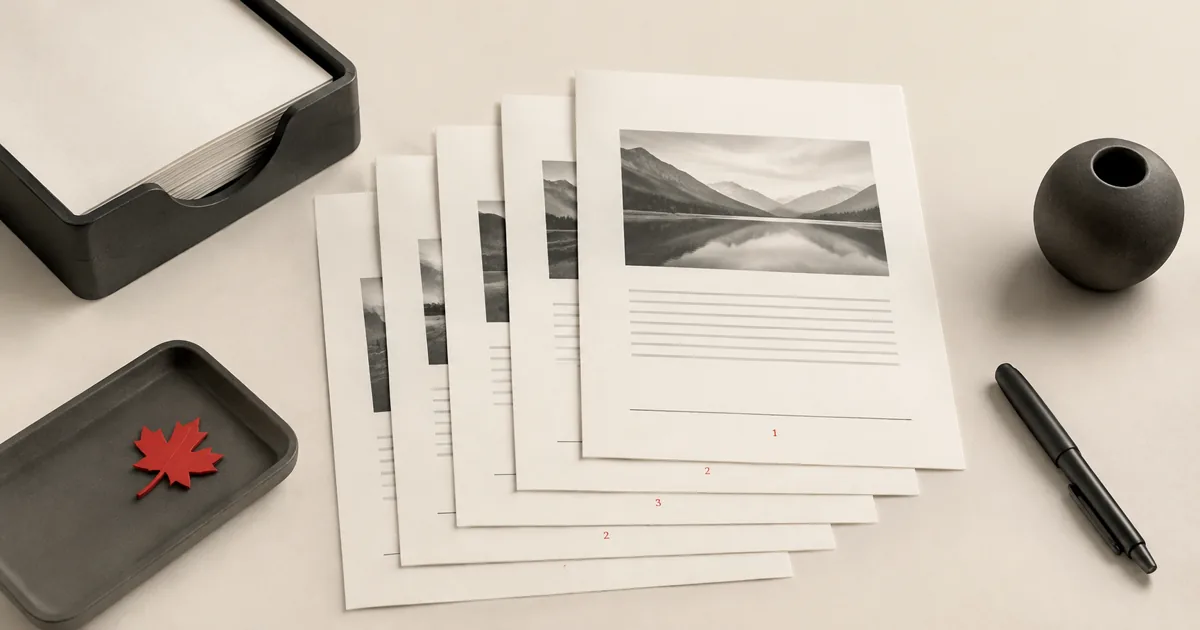
Add Page Numbers is about making a PDF easier to reference, review, and discuss. A good result places numbering where readers expect it, starts at the right point in the document, and stays visible without covering important content.
That is useful for reports, proposals, contracts, packs with appendices, and any file where several people need to talk about the same page without confusion.
Where page numbering helps most
- Add page references to long reports, contracts, and proposal packages.
- Start numbering after a cover page or other front matter.
- Make review comments easier because everyone can refer to the same page number.
Use page numbering when the PDF will be reviewed, printed, cited, or filed. It adds structure to documents that are otherwise hard to reference once they leave the authoring application.
How to number a PDF without cluttering it
- Upload the PDF that needs page numbers.
- Choose the position and starting number that match the way the document will be cited.
- Click Run tool and let processing finish without closing the tab mid-task.
- Scroll through the result and make sure numbering appears in the correct location on every page.
The key decisions are start number and placement. Front matter, cover pages, and appendix sections often mean the correct numbering logic is not simply 'start at page 1 on the first sheet.'
Placement checks before final delivery
- Confirm that numbering begins on the right page, especially if the file includes a cover or title page.
- Check that the chosen corner or edge does not sit on top of signatures, footers, or page content.
- Open a few interior pages to verify the numbering looks consistent throughout the document.
Numbering becomes part of how people talk about the file, so mistakes here are surprisingly visible. Once a reviewer cites the wrong page because of a bad start number, the confusion tends to spread quickly.
Numbering mistakes readers notice immediately
- Starting numbering on the cover page when the real body of the document should begin later.
- Choosing a placement that looks fine on one page but clashes with a footer or stamp on the rest.
- Adding numbers and then forgetting to recheck the file after later page removal or reordering.
Page numbers are small, but they affect the whole reading experience. A short visual review after numbering is usually enough to catch the issues that would otherwise make the document feel sloppy.
Citation and print-workflow notes
If the PDF will be printed, test at least one page to make sure the numbering is not too close to the trim, binder edge, or printer margin. On-screen placement does not always predict paper results perfectly.
Numbering does not hide or protect content; it simply adds reference structure. If the PDF is sensitive, treat the numbered copy with the same care as the unnumbered version.