
Add page numbers to a PDF (positions, starting number, tips)
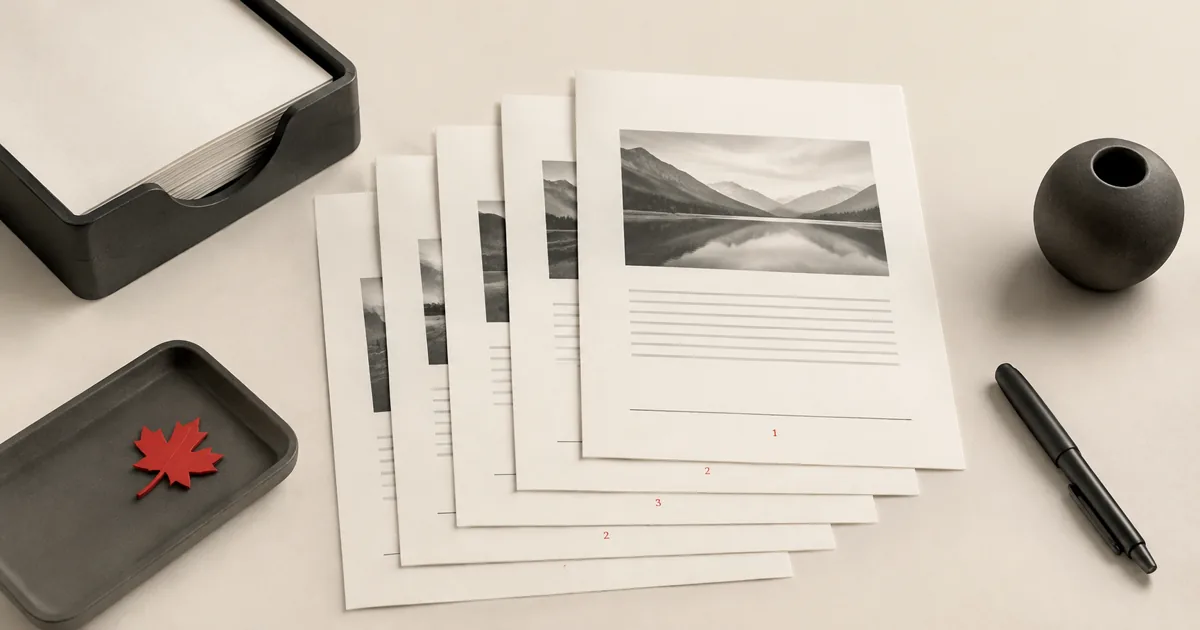
Need to add page numbers to PDF and don’t want to wrestle with print dialogs or heavyweight desktop software? You can handle it directly in your browser. With PDFMaple’s Add page numbers tool, you upload your file, choose a couple of options, and download a polished result in minutes.
- When to use Add page numbers
- Step-by-step: Add page numbers in PDFMaple
- Pro tips for better results
- Real-world use cases for add page numbers to a PDF
- Expert tips that save rework
- Is it safe to upload your files?
- Online tool vs desktop software — which should you use?
- Frequently asked questions
- What to do next
When to use Add page numbers
- Number pages in reports, assignments, or legal documents.
- Start numbering after a cover page.
- Place page numbers in the top or bottom corners/center.
- Make multi-document PDF packages easier to reference.
Step-by-step: Add page numbers in PDFMaple
- Open Add page numbers and upload your PDF.
- Set the Start number (for example, 1 or 0).
- Choose a Position (bottom-right, bottom-center, etc.).
- Run the tool and download the numbered PDF.
Pro tips for better results
- If you merged multiple PDFs, add page numbers after merging so the sequence is continuous.
- Start numbering at 2 if page 1 is a cover you don’t want numbered.
- If numbers overlap existing content, crop margins first to create space.
- For drafts, combine page numbers with a watermark like “DRAFT”.
Real-world use cases for add page numbers to a PDF
Adding page numbers to a pdf is rarely about the feature alone. It is about getting to clear numbering placed consistently and starting at the right point in the document.
Business and operations
Teams add page numbers to board packets and reports so reviewers can refer to the same page quickly during feedback. That prevents a small presentation or labeling issue from turning into a resend when the document is already near the finish line.
Student projects
Students often need page numbers on final submissions even when the source file was exported without them. That helps the submitted version look intentional and complete instead of obviously last-minute.
Legal and admin work
Contracts, forms, and policy packets are easier to review when every page has a clear visible number. That matters because even tiny visual corrections can affect how easy a record is to review later.
Freelancer delivery
Consultants use page numbers on long proposals so comments can reference page 12 instead of “the chart near the end.” That makes the delivery feel deliberate and client-ready instead of improvised. That keeps the delivered copy polished without sending the client back into the source file.
Personal paperwork
Long personal application packets become easier to discuss when pages are visibly numbered in sequence. That makes the final file easier to read and use without forcing you into a bigger editing workflow.
Expert tips that save rework
Light PDF edits feel simple, but tiny placement or visibility mistakes are exactly what cause resend requests. With add page numbers to a pdf (positions, starting number, tips), the review that matters most is whether the change sits where the next person expects to see it.
- Decide whether the cover should count: Some packets show page 1 on the first page, while others leave the cover blank and start numbering later. Choose deliberately so the references make sense.
- Keep the number away from existing content: A footer that overlaps signature lines or legal text creates a new problem while solving another one. Review representative pages before finalizing.
- Use numbering after the page order is final: If you still plan to merge, split, or reorder pages, wait. Numbering makes the most sense once the structure has settled.
- Match the numbering style to the audience: A simple bottom-right number works for most everyday documents. The more formal the document, the more carefully you should check placement.
- Test on printed output if paper matters: A page number that looks fine on screen can feel cramped near the edge on paper. One print test is usually enough to confirm it.
Rename the updated PDF as the version you actually intend to share, then inspect the changed pages one more time. Small alignment issues are easiest to catch before the file leaves your screen.
Is it safe to upload your files?
Questions about adding page numbers to a PDF usually come down to three things: encryption in transit, how long the files exist on the service, and whether the provider does anything with the contents beyond the job you requested. PDFMaple processes uploads and downloads over HTTPS/TLS, so the transfer itself is protected while the task runs. That is the practical baseline people want when the documents include things like reports, contracts, proposals, hearing packets, and school submissions.
Once the output is created, the uploaded files and generated results are meant to be removed automatically, and PDFMaple does not use document contents as a data asset to sell or retain. The detailed policy is in the Privacy Policy. That matters most for files such as reports, contracts, proposals, hearing packets, and school submissions.
Online tool vs desktop software — which should you use?
For most one-off jobs, the browser is the fastest path because the file can be fixed and downloaded without a longer software setup cycle. That matters most when you are on a borrowed machine, a phone, or a laptop that does not have Acrobat installed. For adding page numbers to a PDF, that usually means an online tool is enough when the task is occasional and deadline-driven.
Desktop software such as Adobe Acrobat earns its place when the work involves complex numbering schemes, section restarts, and production publishing workflows. That kind of control is hard to justify for a quick fix, but it matters when the same document task shows up every day or under strict compliance rules.
- Fast fixes without a longer software setup
- Works when you are not on your main computer
- Simple handoff for occasional tasks
- Convenient for quick review-and-send jobs
- Complex editing beyond the immediate task
- Managed enterprise or compliance setups
- Heavier production workflows
- Situations where local-only control is required
Frequently asked questions
Can I choose a different font or color?
This tool focuses on simple, clean numbering. If you need advanced styling, you may need a full PDF editor. Open the result once more and inspect the pages you changed so you know the edit sits exactly where you intended.
Can I number only certain pages?
The basic workflow numbers pages consistently. If you need partial numbering, split or extract pages and apply numbering separately. Open the result once more and inspect the pages you changed so you know the edit sits exactly where you intended.
Will page numbers be selectable text?
Yes in many PDFs, but behavior can vary by viewer. The key goal is visual numbering for reference. Open the result once more and inspect the pages you changed so you know the edit sits exactly where you intended.
Can I start page numbering after the cover page?
Yes, and that is often the better choice for formal packets. Many documents need the cover included in the file but not counted visibly as page 1. Make the numbering rule match how the document will be cited.
Where should page numbers go on a PDF?
Bottom-right is the most common because it is easy to find and rarely interferes with the main content. However, the best position depends on the layout of the page and whether the document already has headers, footers, or signatures. Review a few representative pages before you finalize placement.
Should I add page numbers in Word before exporting or later in the PDF?
If you still control the source file and expect future edits, adding them in Word can be cleaner. If the PDF already exists and you just need numbering now, doing it at the PDF stage is faster. The right choice depends on which file is still the true working copy.
What to do next
Once this part is done, the workflow normally shifts to final review, watermarking, or locking down the numbered copy. Use the links below if that is what you need next.