
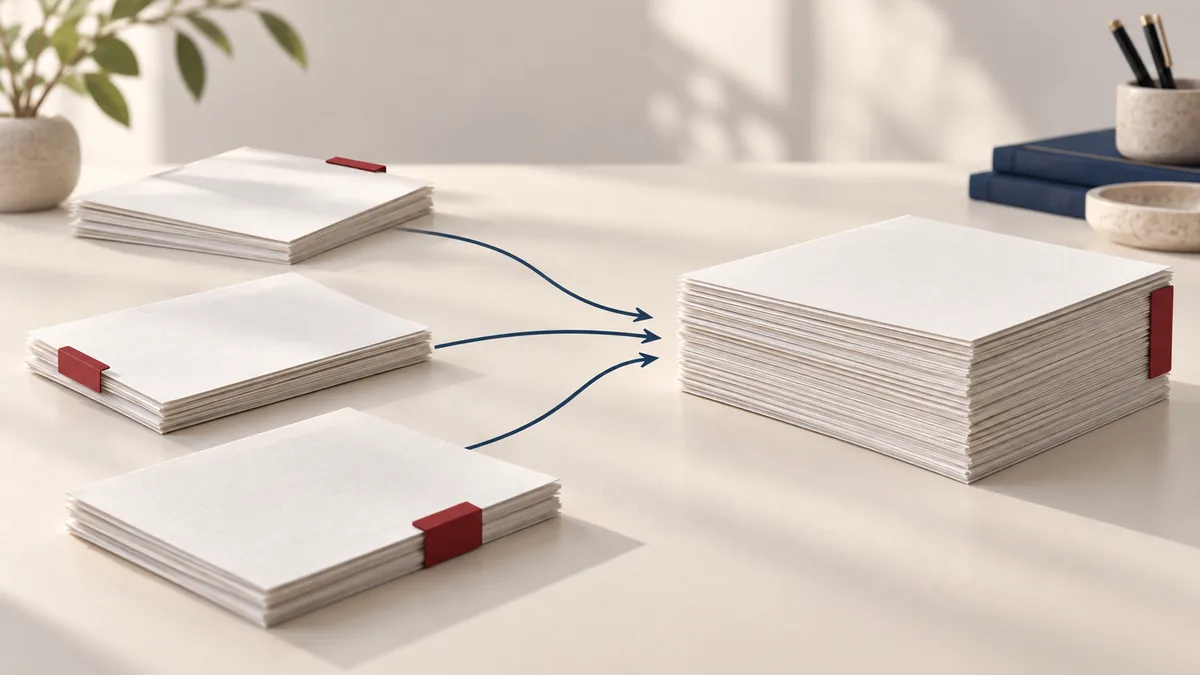
If you’re dealing with client documents, school submissions, or internal reports, small PDF issues can turn into big delays. The good news: tasks like merge PDF files are predictable and repeatable. This guide walks you through a reliable workflow using PDFMaple’s Merge PDF tool.
When to use Merge PDF
- Combine scanned pages into one document after scanning.
- Merge multiple invoices, receipts, or reports into a single PDF for emailing.
- Join chapters of an ebook or assignment into the correct order before submitting.
- Create one PDF package from multiple forms and attachments.
Step-by-step: Merge PDF in PDFMaple
- Open the Merge PDF tool and upload two or more PDF files.
- Drag files into the order you want them to appear in the final document.
- Click Run tool to merge everything into a single PDF.
- Download the merged file and rename it for easy sharing.
Pro tips for better results
- If page order matters, sort the files first (e.g.,
01-…,02-…) before uploading. - For huge PDFs, compress first, then merge to keep the final file lightweight.
- If you only need parts of a file, extract pages first, then merge the cleaned PDFs.
- For legal or financial PDFs, add page numbers after merging to avoid confusion.
Real-world use cases for merge PDF files
The real value shows up when the file has to work for the next person on the first try. For this workflow, the target is a single file that opens in the right order, keeps page orientation consistent, and is easy for the next person to review or print.
Business and operations
An office coordinator often needs to combine agenda notes, financial summaries, and signed approvals into one board packet before a deadline. That keeps everyone reviewing the same page set in the same order instead of guessing which attachment is the final one.
Student projects
A student may have a cover page, main paper, appendix, and rubric that all need to go into one learning-platform upload. That helps the instructor or portal see the exact pages you intended, without missing sections or duplicates.
Legal and admin work
A legal assistant may need one clean file containing a motion, exhibits, and declarations in the order the filing instructions require. That creates a cleaner record because the shared copy matches the scope and order you meant to send.
Freelancer delivery
A freelancer can use a merged PDF to send a proposal, contract, and work samples as one polished attachment instead of four separate files. That reduces follow-up because the client gets one tidy file instead of a package that still needs sorting.
Personal paperwork
For visa, mortgage, or insurance paperwork, merging scanned statements and ID pages into one PDF makes the review process much simpler for the recipient. That makes the document easier for another person to review because the right pages are together and the extras are gone.
Expert tips that save rework
Page-management tasks create rework when selection, order, or scope are rushed. With how to merge pdf files online for free, the smartest check is the boring one: confirm that the right pages landed in the right sequence before anyone else opens the file.
- Name files before you upload them: If the source files are called scan1, final, and final2, mistakes happen fast. A simple naming pattern like 01-cover, 02-report, 03-appendix makes the order obvious before you click Run tool.
- Fix rotation first: If one file has sideways pages, rotate it before merging. A merged file with random orientation issues is harder to review and more annoying to print.
- Check for duplicate pages: People often merge the corrected file and the outdated draft by accident. Scroll thumbnails after the merge and look for repeated covers, signature pages, or appendices.
- Decide when to compress: If the final output is too large for email or a portal upload, merge first and then compress the single combined PDF. That makes it easier to judge the real size of the file you are actually sending.
- Treat the merged result as a new deliverable: Rename it clearly and verify page order before forwarding it. That one habit prevents a lot of “I sent the wrong attachment” moments.
Name the finished file clearly, open the thumbnails once from start to finish, and only then send or archive it. That habit catches wrong-order and wrong-scope errors before they spread.
Is it safe to upload your files?
With merging PDFs, most users are really asking whether the file is exposed during upload and whether the service hangs on to the contents afterward. PDFMaple handles the transfer over HTTPS/TLS, which protects the upload and download while the job is being completed. That is the practical baseline people want when the documents include things like board packets, signed approvals, application attachments, and scanned supporting documents.
Files are processed on our server to create your output. Ordinary conversion workspaces are removed after the response; interactive editing needs temporary session storage. Read the file retention and privacy details before uploading sensitive documents.
Online tool vs desktop software — which should you use?
For most one-off jobs, the browser is the fastest path because the file can be fixed and downloaded without a longer software setup cycle. That matters most when you are on a borrowed machine, a phone, or a laptop that does not have Acrobat installed. For merging PDFs, that usually means an online tool is enough when the task is occasional and deadline-driven.
The desktop route is stronger when you need large assembly jobs, bookmark cleanup, accessibility remediation, and deeper document management after the merge. For routine document chores, though, the lighter online path is often the more sensible choice because it gets you to the output faster.
- One task, one result, no install
- Useful on shared or borrowed devices
- Quick enough for phone and tablet work
- Good when the file just needs to move forward
- Large recurring jobs
- Deeper correction and document inspection
- Offline-only environments
- Teams that need standardized desktop procedures
Frequently asked questions
Will merging change the quality of my PDF pages?
Merging typically keeps the original page content intact. The result is a single container PDF that preserves each source page as-is. The safest check is to compare a few representative pages, especially small text, tables, signatures, or scans.
Can I merge password‑protected PDFs?
If a file is locked, unlock it first (with permission) and then merge. Permission still matters, and the next step of the workflow should justify creating a less restricted copy.
Is there a limit to how many PDFs I can merge?
The practical limit is usually file size and your upload bandwidth. If you hit limits, merge in batches (e.g., 10 files at a time). The real limit is usually the file size, complexity, and connection speed rather than a simple number alone.
Can I merge PDF files with different page sizes?
Yes, you can merge files that mix A4, Letter, or other page sizes, but the page dimensions stay as they are. That is usually fine for on-screen reading, but it matters when the result is printed. If the audience will print the file, review a few pages so you know how the size changes feel in the finished packet.
Should I compress before or after I merge PDF files?
Most of the time it is better to merge first and then compress the final output. That way you only evaluate one file size and one quality trade-off. Compressing before the merge can make sense if one source PDF is huge and slow to upload, but the cleaner workflow is usually merge, review, then compress if needed.
Do bookmarks or links carry over when I merge PDF files?
Basic page content usually carries over cleanly, but bookmarks, form behavior, and internal links can vary depending on how the source PDFs were created. If the final file needs polished navigation, open it after merging and test the bookmarks or clickable links. For high-stakes deliverables, never assume interactive elements survived unchanged.
What to do next
After merging PDFs, the next step is usually cleanup, compression, or page numbering before the file goes out. The links below cover the most common follow-up moves for this workflow.