
Rotate a PDF: fix sideways scans and wrong orientation
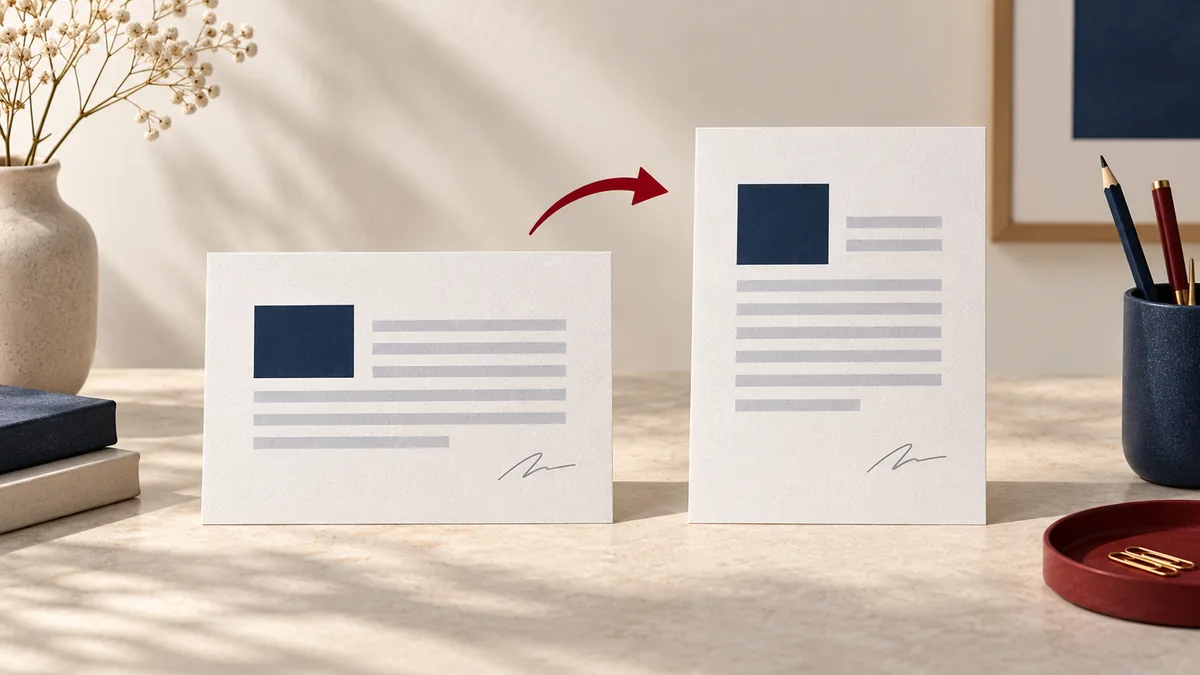
If you’re dealing with client documents, school submissions, or internal reports, small PDF issues can turn into big delays. The good news: tasks like rotate PDF pages are predictable and repeatable. This guide walks you through a reliable workflow using PDFMaple’s Rotate PDF tool.
When to use Rotate PDF
- Fix sideways scanned documents.
- Rotate only a few pages that were scanned incorrectly.
- Correct orientation before printing or signing.
- Normalize mixed orientations in multi-page PDFs.
Step-by-step: Rotate PDF in PDFMaple
- Open Rotate PDF and upload your file.
- Choose an angle (90°, 180°, or 270°).
- Optionally specify pages to rotate (example:
1,3,5-7). Leave blank to rotate all pages. - Run the tool and download the corrected PDF.
Pro tips for better results
- Rotate first before adding page numbers or watermarks so overlays align correctly.
- If only some pages are wrong, specify page ranges to avoid rotating the entire document.
- For scans with large margins, crop after rotating for a cleaner look.
- If you plan to merge, rotate each source PDF first so the merged output is consistent.
Real-world use cases for rotate a PDF
Rotating pdf pages is rarely about the feature alone. It is about getting to pages that open in the correct direction on screen and on paper.
Business and operations
A team may receive a scanned report where several pages are sideways, making internal review frustrating. That prevents a small presentation or labeling issue from turning into a resend when the document is already near the finish line.
Student projects
Students often rotate pages after scanning handwritten notes or lab pages from a phone. That helps the submitted version look intentional and complete instead of obviously last-minute.
Legal and admin work
Administrative files frequently include one upside-down page buried inside an otherwise normal packet. That matters because even tiny visual corrections can affect how easy a record is to review later.
Freelancer delivery
A freelancer can fix a sideways contract or proof quickly without asking the client to rescan it. That keeps the delivered copy polished without sending the client back into the source file.
Personal paperwork
People handling forms and ID scans often need rotation as the last cleanup step before upload. That makes the final file easier to read and use without forcing you into a bigger editing workflow.
Expert tips that save rework
Light PDF edits feel simple, but tiny placement or visibility mistakes are exactly what cause resend requests. With rotate a pdf: fix sideways scans and wrong orientation, the review that matters most is whether the change sits where the next person expects to see it.
- Rotate before you annotate or sign: It is easier to place text, comments, or signatures once the page is facing the right direction. Fix orientation first, then continue.
- Check only the pages that changed: If the document is long, focus your review on the pages you rotated rather than rereading the whole file.
- Watch scans with mixed orientation: Phone scans often include a few pages captured differently from the rest. Thumbnail review is the fastest way to spot them.
- Use 180° deliberately: Some pages are not sideways; they are upside down. Make sure you apply the right turn, not just the first rotation option you see.
- Pair rotation with cropping when needed: A page can be upright and still look messy because of oversized borders or skewed framing. Rotation and crop often belong together.
One final pass over every affected page, especially where only some pages needed rotation will catch most of the problems that create resend requests later.
Is it safe to upload your files?
With rotating PDF pages, most users are really asking whether the file is exposed during upload and whether the service hangs on to the contents afterward. PDFMaple handles the transfer over HTTPS/TLS, which protects the upload and download while the job is being completed. That is the practical baseline people want when the documents include things like phone scans, sideways exhibits, upside-down forms, and mixed-orientation packets.
Files are processed on our server to create your output. Ordinary conversion workspaces are removed after the response; interactive editing needs temporary session storage. Read the file retention and privacy details before uploading sensitive documents.
Online tool vs desktop software — which should you use?
Online tools make the most sense when speed and convenience matter more than deep control. They fit well when the task is occasional, the file has to be fixed right now, or the device in front of you is not the one you normally use for document work. For rotating PDF pages, that usually means an online tool is enough when the task is occasional and deadline-driven.
Adobe Acrobat still makes more sense when you need bulk page rotation, scan cleanup, and complex production files, or when the files must stay in a tightly managed offline environment. If the job is occasional and practical, online is usually enough; if it is repetitive and highly controlled, desktop has the edge.
- Fast fixes without a longer software setup
- Works when you are not on your main computer
- Simple handoff for occasional tasks
- Convenient for quick review-and-send jobs
- Complex editing beyond the immediate task
- Managed enterprise or compliance setups
- Heavier production workflows
- Situations where local-only control is required
Frequently asked questions
Can I rotate just one page?
Yes. Enter that page number in the Pages field (for example: 4 ). Open the result once more and inspect the pages you changed so you know the edit sits exactly where you intended.
Will rotation affect text selection?
Rotation changes page orientation, not the underlying text content. Text should remain selectable in most PDFs. Open the result once more and inspect the pages you changed so you know the edit sits exactly where you intended.
Why are some pages still wrong?
If you rotated the wrong direction, rerun with a different angle (90 vs 270). Open the result once more and inspect the pages you changed so you know the edit sits exactly where you intended.
Does rotating a PDF affect print quality?
Normally no. Rotation changes page orientation, not the underlying page quality. As always, it is still wise to open the result and confirm the page displays the way you expect.
Can I rotate just one page in a PDF?
Yes, and that is one of the most common use cases. Many documents are fine except for one or two problem pages. Fixing only those pages is quicker than rebuilding the whole file.
Should I rotate before merging or after?
If one source file is obviously wrong, rotating it first can keep your later merge cleaner. If the issue only becomes obvious after you combine everything, rotating afterward is still perfectly reasonable. The best order depends on when you notice the problem.
What to do next
After rotating PDF pages, the next step is usually cropping, numbering, or merging once orientation is fixed. The links below cover the most common follow-up moves for this workflow.