
Repair PDF
Repair PDF files online to fix common opening, rendering, or compatibility problems and generate a cleaner output copy.
Files are sent to PDFMaple’s server when you run processing or export. Some previews and page edits run on your device. File handling and retention
1 Select your files
2 Process & download
Learn more about Repair PDF
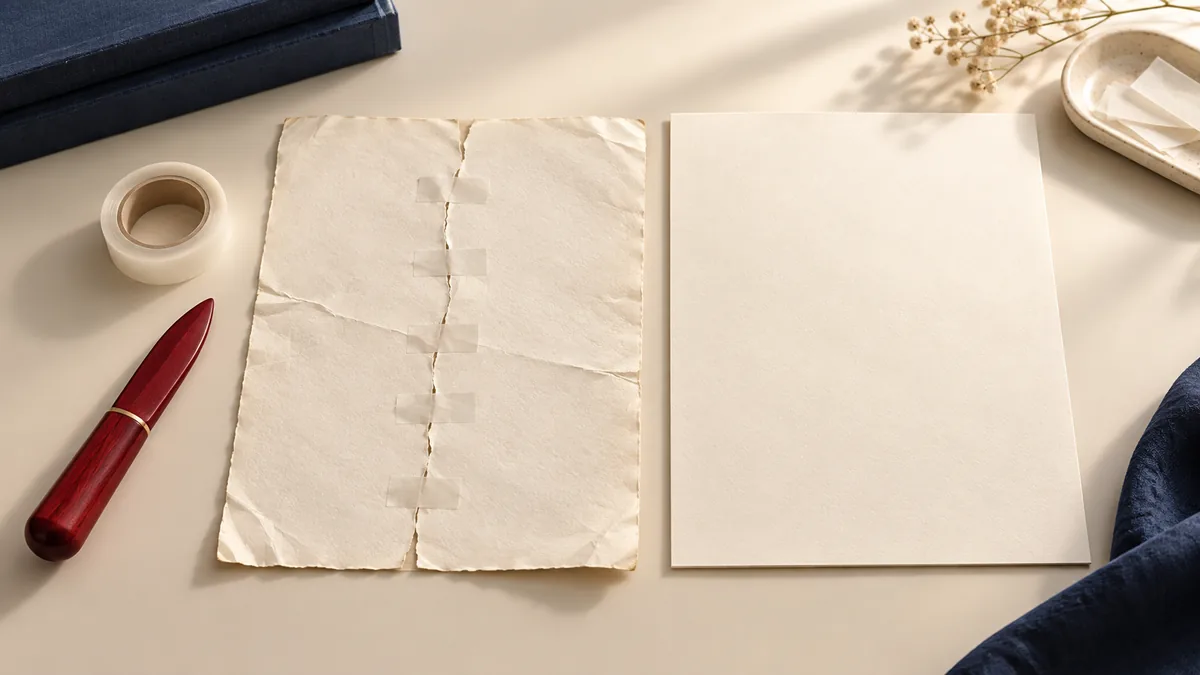
What a repaired PDF should fix
Repair PDF is for the situations where a file opens with errors, renders badly, or behaves unpredictably across viewers. A good repair does not magically restore every damaged byte; it creates a cleaner, more compatible copy that is easier to open, read, or print.
That is especially helpful with files that were interrupted during download, passed through several systems, or produced by unreliable export tools that left the PDF structure inconsistent.
When repair is worth trying
- Rebuild a file that will not open correctly in a PDF viewer.
- Improve compatibility after a download, copy, or transfer produced a damaged PDF.
- Rescue a document that prints badly or throws errors in common PDF apps.
Repair is most valuable when the file content still seems present but the document behaves badly. If pages are visibly missing or the source is deeply corrupted, repair may still help, but it should be treated as recovery rather than guaranteed restoration.
How to run a repair pass responsibly
- Upload the problematic PDF so the tool can rebuild the file structure as cleanly as possible.
- Let the repair pass finish completely so the rebuilt output can be written cleanly.
- Click Run tool and let processing finish without closing the tab mid-task.
- Test the repaired PDF in your usual viewer and, if relevant, print a page to confirm stability.
The safest repair workflow starts by preserving the original. Run the repair on a copy, then test the output in the viewer or process that originally failed so you know whether the rebuilt file actually solved the right problem.
How to tell whether the repair worked
- Open the repaired file in the same app or browser that previously showed the error.
- Test page navigation, printing, and search if those were the features that were failing before.
- Check whether images, fonts, or page counts changed unexpectedly during the rebuild.
A repaired PDF is only useful if it resolves the practical failure. Focus on the specific behavior that broke the workflow rather than assuming a file is fixed just because it now opens once on your machine.
Repair assumptions that waste time
- Overwriting the original damaged PDF before you know the repaired copy is trustworthy.
- Treating repair as a substitute for asking the sender for a cleaner export when that option still exists.
- Assuming that all viewers will behave the same after repair without testing the actual environment that matters.
If the repaired file is going into an archive or compliance system, test that system directly. A PDF that seems fine in a browser preview can still fail later in a more demanding workflow.
Recovery and preservation notes
Repair often stabilizes structure, but it does not improve poor source quality. Dark scans, missing fonts, or wrong page order may still need separate cleanup steps after the file is readable again.
Because repaired files may become the new working copy, label them clearly and keep both versions until the document has passed review. Recovery work is much easier to audit when you know which file came from the repair pass.