
Repair a PDF file: fix common errors and opening issues
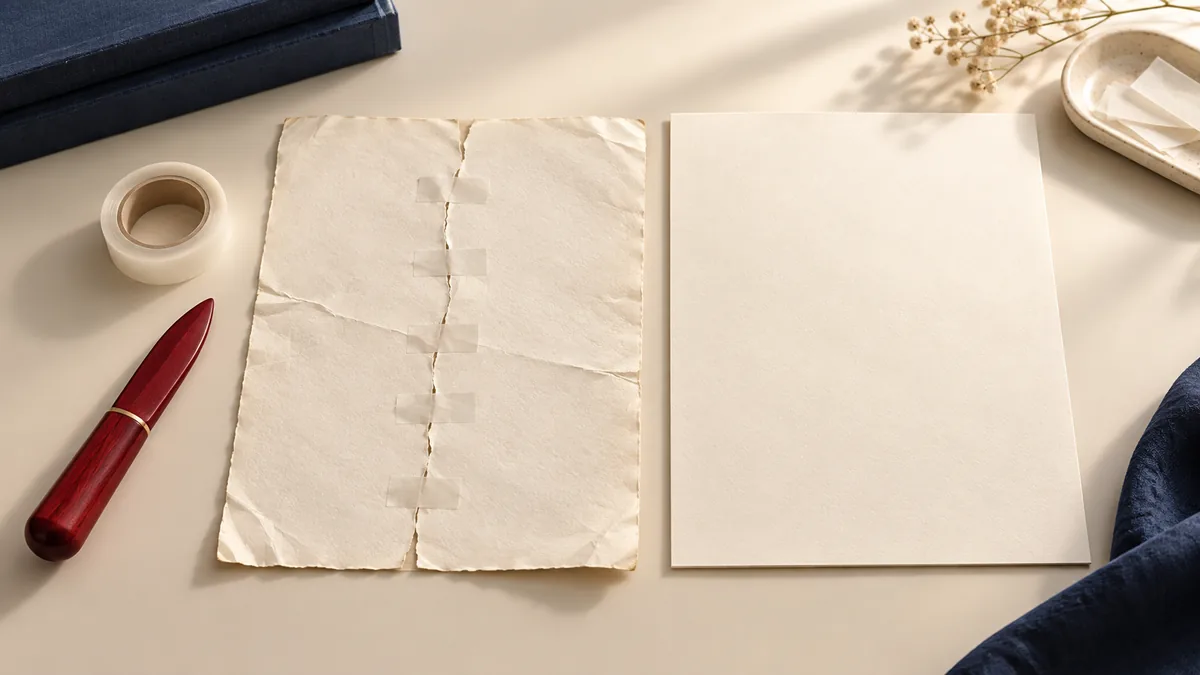
If you’re dealing with client documents, school submissions, or internal reports, small PDF issues can turn into big delays. The good news: tasks like repair a PDF are predictable and repeatable. This guide walks you through a reliable workflow using PDFMaple’s Repair PDF tool.
When to use Repair PDF
- Fix PDFs that won’t open or display correctly in certain viewers.
- Repair a PDF after an incomplete download or transfer.
- Resolve errors like missing pages, broken objects, or corrupted structure (when possible).
- Clean up PDFs before converting to Word or images.
Step-by-step: Repair PDF in PDFMaple
- Open Repair PDF and upload the problematic file.
- Run the tool to rebuild the PDF structure.
- Download the repaired PDF.
- If needed, re-run other tools (convert, compress, split) on the repaired file.
Pro tips for better results
- If repair succeeds, save the repaired file as your new working copy.
- If repair fails, try downloading the PDF again from the original source (the file may be incomplete).
- For very large PDFs, repairing first can prevent conversion errors later.
- If the PDF is password-protected, unlock it first (with permission).
Real-world use cases for repair a PDF file
The practical question is not whether the tool runs. It is whether the result is a file that behaves normally in common viewers and no longer blocks the workflow.
Business and operations
A team may receive a PDF that will not open on one machine even though the deadline to review it is already close. That matters because the next person usually cares more about whether the file arrives and opens quickly than about the original export size.
Student projects
A student can discover that a final submission PDF is corrupted only after the portal rejects it. That lowers the chance of a last-minute upload failure while keeping the pages readable for grading.
Legal and admin work
Administrative files sometimes arrive partly damaged after a bad export, interrupted upload, or incomplete email download. That makes portal submissions smoother because the file is small enough to accept without turning fine print into mush.
Freelancer delivery
A freelancer may need to salvage a client handoff PDF quickly instead of asking for a resend and losing a day. That helps the client review the file on a laptop or phone without waiting on a bloated download.
Personal paperwork
People dealing with tax records or claim documents often only have one copy, so repair is the first recovery step worth trying. That often makes the difference between a portal accepting the upload and forcing you to rescan or split the document.
Expert tips that save rework
Optimization jobs usually go wrong when people chase the smallest possible file and stop looking at the pages that matter. With repair a pdf file: fix common errors and opening issues, the useful review is whether readability, upload success, and downstream sharing are all still intact after processing.
- Save the damaged original first: Do not overwrite the only copy while testing fixes. Keep the original intact so you can try another recovery method if the first attempt fails.
- Check the file transfer path: Some “broken PDF” cases are really incomplete downloads or attachment corruption. If the size looks suspiciously small, re-download before assuming the file itself is gone.
- Try repair before conversion: If the file is corrupted, converting it to another format often fails too. Stabilize the PDF first, then decide whether you need Word, Excel, or image output.
- Look for partial recovery: Sometimes a repair gets most pages back but not everything. Even that can be useful if it lets you recover the critical section while you request a cleaner source.
- Re-export when the source app still exists: If the sender still has the original Word, Excel, or design file, a fresh export can be better than prolonged repair attempts. Repair is most valuable when the PDF is the only copy available.
If you only have time for one review, check whether the repaired file opens cleanly, prints, and preserves the pages that matter. That is usually the point where a rushed handoff creates avoidable back-and-forth.
Is it safe to upload your files?
For this kind of workflow, the practical security questions are straightforward: is the connection encrypted, are the files temporary, and is the service treating the document as job input rather than as content to keep? PDFMaple uses HTTPS/TLS for upload and download so the transfer is protected in transit. That is the practical baseline people want when the documents include things like downloaded reports, transferred scans, print-failing PDFs, and documents that open with errors.
Files are processed on our server to create your output. Ordinary conversion workspaces are removed after the response; interactive editing needs temporary session storage. Read the file retention and privacy details before uploading sensitive documents.
Online tool vs desktop software — which should you use?
Online tools make the most sense when speed and convenience matter more than deep control. They fit well when the task is occasional, the file has to be fixed right now, or the device in front of you is not the one you normally use for document work. For repairing a PDF, that usually means an online tool is enough when the task is occasional and deadline-driven.
Adobe Acrobat still makes more sense when you need forensic recovery, advanced validation, and stubborn files that need specialist desktop tools, or when the files must stay in a tightly managed offline environment. If the job is occasional and practical, online is usually enough; if it is repetitive and highly controlled, desktop has the edge.
- Fast fixes without a longer software setup
- Works when you are not on your main computer
- Simple handoff for occasional tasks
- Convenient for quick review-and-send jobs
- Large recurring jobs
- Deeper correction and document inspection
- Offline-only environments
- Teams that need standardized desktop procedures
Frequently asked questions
Can repair fix every broken PDF?
Not always. Repair works when the underlying content is intact but the file structure is damaged. Severely corrupted files may be unrecoverable. Before you send the result, zoom in on the smallest text, tables, or signatures that matter and make sure they still read cleanly.
Will repair change the look of my PDF?
Usually no, but in rare cases some metadata or minor structure elements may be normalized. Before you send the result, zoom in on the smallest text, tables, or signatures that matter and make sure they still read cleanly.
Should I repair before converting?
If conversion fails or the PDF behaves oddly in viewers, repairing first is a good troubleshooting step. Before you send the result, zoom in on the smallest text, tables, or signatures that matter and make sure they still read cleanly.
What causes a PDF to become corrupted?
Interrupted uploads, failed downloads, storage errors, bad exports, or email attachment problems are common causes. The file can also appear broken when the receiving app is outdated or unusually strict. That is why it helps to test the PDF in more than one viewer before you assume the worst.
Should I repair the PDF or ask for a new copy?
Do both when the document matters. Try repair right away because it may save time, but also request a clean copy if another person controls the source. That way you are not blocked if the damaged file cannot be recovered fully.
What should I do after a repaired PDF opens?
Scroll through the whole document and look for missing pages, blank sections, or distorted text. A file that opens is not automatically a file that is fully trustworthy. Visual review is the final confirmation step.
What to do next
Once this part is done, the workflow normally shifts to saving a stable copy, archiving it, or continuing the original document workflow. Use the links below if that is what you need next.