
PDF to Word: editable text or preserved appearance?
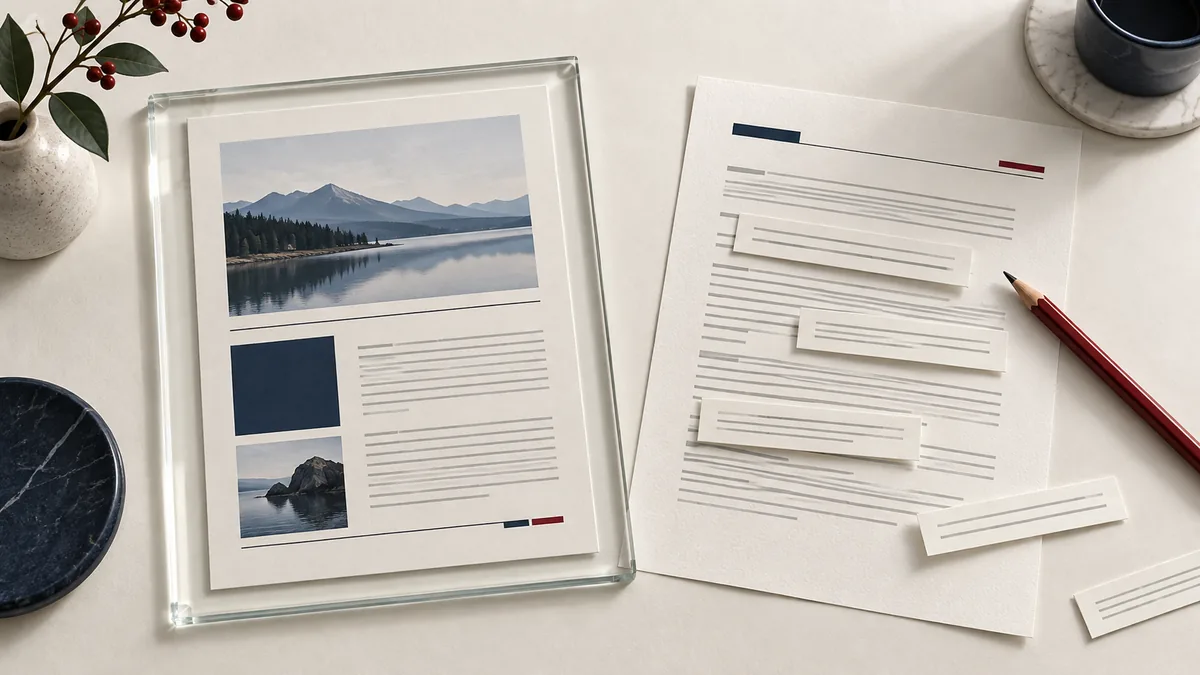
A Word file can contain editable paragraphs or simply pictures of PDF pages. Both use the DOCX extension, but they solve different problems. Decide whether you need to rewrite the document or preserve its appearance before converting.
Choose the output that matches your next step
| Output mode | What you receive | Use it when |
|---|---|---|
| Automatic | Editable conversion where supported, with recognition for scanned pages; some detected right-to-left documents use page images. | You want a starting point and will inspect the result. |
| Editable text / OCR | Text you can select and change. Scans are recognized and reflowed into paragraphs. | You need to rewrite sentences or reuse content. |
| Preserve appearance | PDF pages inserted as images inside a Word document. | You need a visual reference in DOCX and do not need to edit the words. |
Convert a scan into real Word text
- Open PDF to Word and choose your PDF.
- Choose editable output. Set the recognition language to match the document: English, French, Arabic, Persian, Hindi, or Russian.
- Run the conversion and download the DOCX.
- Open it in Word or another compatible editor. Select a sentence and change one word; this confirms you have text rather than a page image.
- Compare names, dates, totals, and paragraph order against the PDF before saving your working copy.
A tested example
In our September 5, 2026 regression check, a synthetic PDF page containing “ALPHA” was rendered as an image and converted back into Word. We checked that the output contained actual Word text, then converted that DOCX back to PDF and checked the text again. This tests the recognition path; it does not establish accuracy for handwriting, damaged scans, or every language.
Why the layout can change
A PDF describes positions on a page. Word describes paragraphs that wrap with margins and fonts. A two-column newsletter can become a single reading stream; a table with merged cells may need to be rebuilt. For scanned pages, the editable fallback prioritizes recognized words and page breaks over reproducing decorative layout.
If you have the original Word file, edit that source instead. If you only need to move complete pages, organize the PDF without converting its text.
Check the result before sharing
- Search for a distinctive phrase from the original, including one near the last page.
- Compare all numbers in a table, including decimal separators and minus signs.
- Look for confused characters such as O/0, I/1, and missing accents.
- Check page breaks, bullets, headings, and reading direction.
- Keep the original PDF beside the edited copy until the document is approved.
If no text is recognized
Try a clearer source scan with upright pages and readable contrast. Choosing a language cannot recover words that are blurred beyond recognition. Preserve-appearance mode can still create a visual Word copy, but it will not make those words editable. For a short document, manually transcribing the unreadable sections may be more reliable.