
PDF to Excel
Convert PDF to Excel online. Extract tables and structured data into XLSX for editing, sorting, and analysis.
Files are sent to PDFMaple’s server when you run processing or export. Some previews and page edits run on your device. File handling and retention
1 Select your files
2 Process & download
Learn more about PDF to Excel
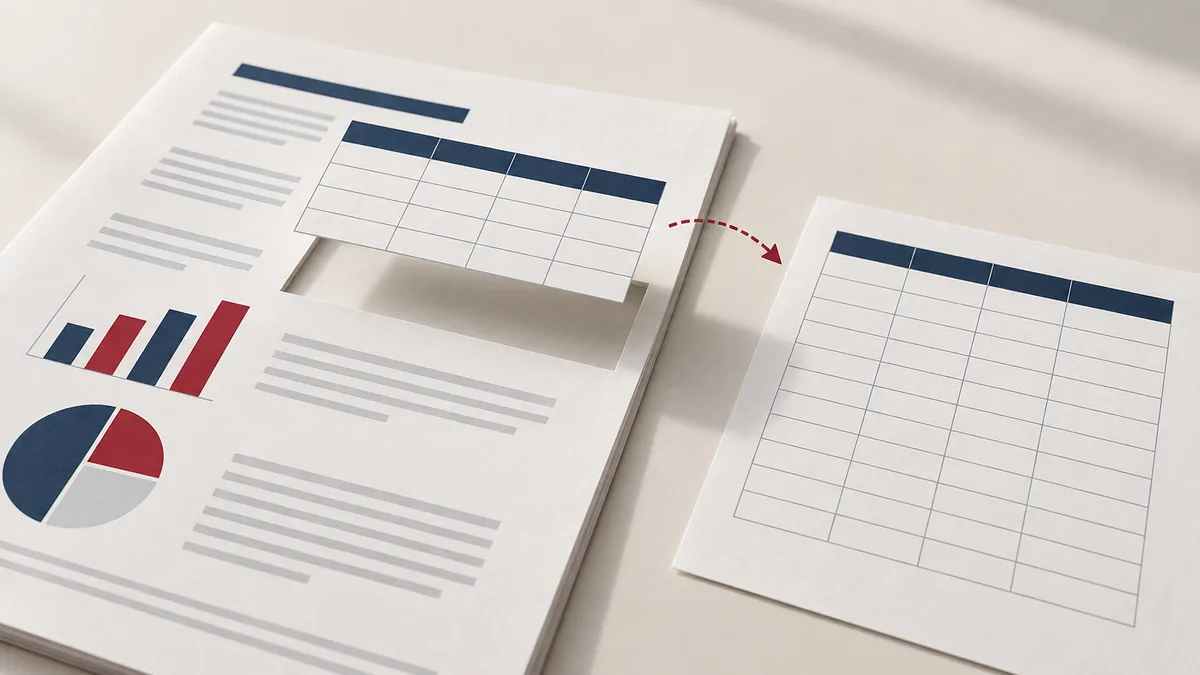
What a useful PDF-to-spreadsheet output should deliver
PDF to Excel is about getting structured data back into a worksheet so you can sort, filter, total, and analyze it again. A good result is not just any XLSX file; it is one where the rows and columns are usable enough that you spend your time reviewing data instead of rebuilding the table layout from scratch.
This is most useful for invoices, statements, reports, schedules, and exported forms that already contain tabular information but are trapped inside a PDF.
When PDF to Excel is the right recovery step
- Pull tables and numeric data into a spreadsheet for sorting and analysis.
- Avoid manual retyping when a report arrives only as a PDF.
- Create a workbook from repeated tabular pages to continue downstream analysis.
Choose this workflow when data reuse matters more than page fidelity. It is the practical option when retyping is slow, the source spreadsheet is gone, and the PDF still contains recognizable table structure.
How to convert with table structure in mind
- Upload the PDF that contains the tables or numeric data you want in a spreadsheet.
- Focus on the pages that contain clear tables, because tabular structure drives the best output.
- Click Run tool and let processing finish without closing the tab mid-task.
- Open the spreadsheet and validate column alignment, merged cells, and number formatting right away.
The cleaner and more regular the table, the better the spreadsheet output. Dense visual layouts, merged cells, and scanned tables can still convert, but they require a more careful review before anyone trusts the numbers.
Data checks before you start analysis
- Compare totals, date columns, and key identifiers against the source PDF before using the sheet for real work.
- Look for shifted columns, merged text, or header rows that landed in the wrong place.
- Confirm that numeric values remained numeric in Excel and did not arrive as text strings with formatting artifacts.
A spreadsheet that looks neat can still be wrong in ways that matter. The first review should focus on business-critical fields and totals, because those are the mistakes that do the most downstream damage.
Extraction mistakes that distort the numbers
- Assuming that a visually busy report with side notes and nested headers will convert into a clean analytical table automatically.
- Using the XLSX immediately for formulas or dashboards without verifying that the columns remained aligned.
- Discarding the original PDF before the extracted sheet has passed a data-quality check.
The conversion step saves time, but verification protects decisions. Treat the output as draft analytical material until the important rows and totals have been checked against the original document.
Table-quality and audit-trail notes
PDF-to-Excel workflows should preserve an audit trail. Keep the source PDF nearby so anyone reviewing the sheet later can trace values back to the original page if a question comes up.
If the PDF contains sensitive business or personal data, the spreadsheet output may be even easier to manipulate and redistribute. Apply the same access discipline to the XLSX that you would apply to the PDF source.
A practical document check
Treat an extracted table as data that needs validation. Compare columns and rows before sorting or adding formulas.
Limits to account for
Scans and merged headings can produce weak table structure. Dates, decimal separators and negative amounts may be misinterpreted or exported as text.
Verify the downloaded copy
Check a blank cell, a negative value and several source rows. Confirm numeric cell types before calculating totals, and keep the authoritative PDF.
For another worked-through workflow, read pdf to excel cleanup tips. See the file handling and retention details before uploading sensitive documents.