How to make a scanned PDF searchable with OCR
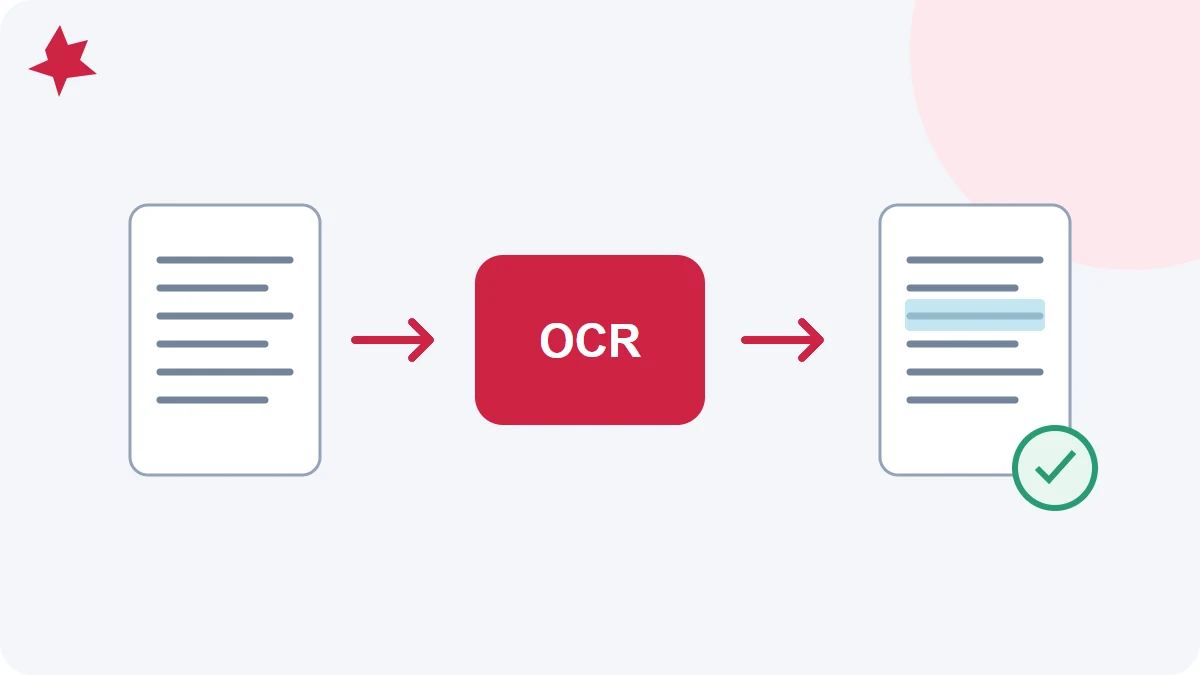
To make a scanned PDF searchable, add an OCR text layer, then check that searching finds the words you can see on the page. You do not need to turn the document into Word just to search it. A searchable PDF keeps the scan as the visual reference and adds recognized text behind it.
Check whether the PDF is really a scan
Open a page with a clear sentence. Try selecting a few words, then search for a distinctive word in that sentence. If selection grabs a picture, or search finds nothing, the page may contain only an image. Test more than one page: an archive can contain a digital cover sheet followed by scanned attachments.
Being able to select text is not proof that it is correct. Older OCR can contain wrong letters or an incorrect reading order. Compare a selected sentence with the visible scan before deciding that the existing layer is usable.
Make the PDF searchable in PDFMaple
- Open OCR PDF and choose the original PDF, up to 20 MB and 20 pages.
- Select Analyze PDF. PDFMaple checks which pages contain text before starting OCR.
- If recognition is needed, choose English, French, or both according to the printed document. This choice recognizes text; it does not translate it.
- Start recognition and wait for completion. Download the searchable PDF.
- Open the downloaded file, search for a known word and check several selected sentences.
Pages with existing text are preserved. A sparse page header can count as existing text, so a page combining a typed heading with a photographed attachment deserves an extra check. If the original is still on paper, use Scan to PDF to photograph and straighten it first.
What changes inside the document?
The visible page and the recognized text serve different purposes. The image shows what was scanned. The invisible text layer supports selection and search. An incorrect recognized amount does not necessarily change the amount pictured on the page, but it can affect a copied passage, search result or later conversion.
For example, a scan might clearly show an invoice reference ending in “O8”, while its text layer contains “08”. Check identifiers, dates, totals and negative signs before using extracted text in another system. For sensitive documents, retain the original scan with the reviewed result.
When recognition needs a better source
Blur, glare, heavy shadows and tiny compressed text cannot reliably be repaired by OCR. Try a sharper scan before repeatedly processing the same poor image. Printed paragraphs are usually a more suitable input than handwriting, decorative lettering or crowded tables. Follow the phone-scan OCR quality checklist when you can recapture the page.
Choose your next step
Keep the searchable PDF when you mainly need to find or copy information. Use PDF to Word when you need editable paragraphs, and review the converted layout. For an overview, AI PDF Summary can help you read selected pages, but verify its statements against the original document.