OCR PDF vs PDF to Text vs PDF to Word: which should you use?
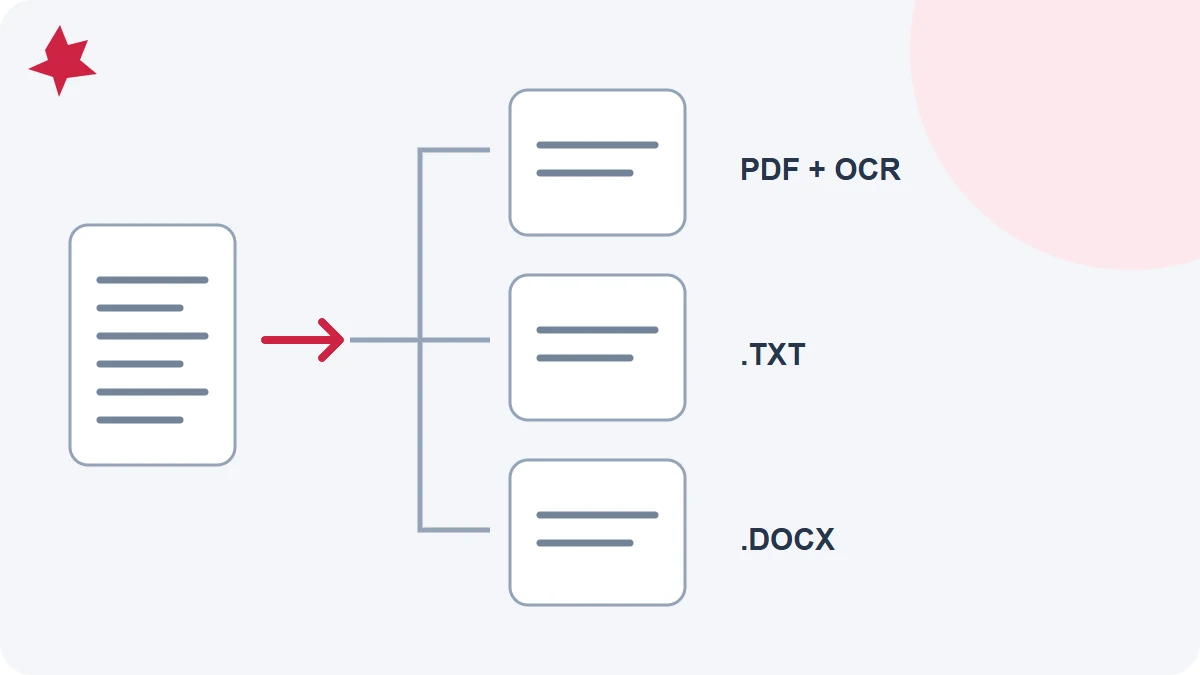
Use OCR when the words are pictures, text extraction when the PDF already contains usable text, and PDF-to-Word conversion when you need to edit the document. These operations solve different problems. Converting a file unnecessarily can lose layout or introduce recognition errors without helping your actual task.
Start with the result you need
| Your document | Your goal | A useful first step |
|---|---|---|
| Scanned invoice | Search for a reference number | OCR, followed by a number check |
| Digital contract | Copy one clause | Select the existing text in a PDF reader |
| Research paper | Read the text outside its layout | Extract existing text and check column order |
| Phone receipt | Keep a readable expense record | Scan and straighten the photo; add OCR if search is useful |
| Application form | Change the wording | Use the original editable file if available; otherwise try Word conversion |
| Archived image-only PDF | Find names across pages | Make a searchable PDF with OCR |
OCR recognizes pictured characters
OCR PDF adds a recognized text layer to scanned pages. The visible document remains the reference. Recognition may confuse similar letters and numbers, especially on faded receipts or small table cells. Selecting the correct document language helps recognition but does not turn French text into English.
If you already have a clean digital PDF, applying OCR to it can be unnecessary. PDFMaple analyzes the pages first and preserves existing text. For a mixed file, check both the digital pages and the scanned attachments after processing.
Text extraction uses what is already there
Text extraction reads the PDF's existing characters. It does not recognize letters in a photograph. A PDF reader's copy command may be enough when you only need a short passage; a plain-text export in your reader can help with a longer document. PDFMaple does not provide a separate general-purpose PDF-to-TXT tool in this release.
Plain text does not preserve the page design. Two columns may appear in the wrong order; a table can become a sequence of values without clear row boundaries. Check the beginning and end of each column and a representative table before treating the output as structured data.
Word conversion aims for editable structure
PDF to Word is useful when your next step is editing paragraphs. It has to infer elements such as lines, paragraphs and tables from a format designed for fixed pages. A scanned source may require recognition first, followed by layout reconstruction. Expect to review page breaks and complex formatting.
For a digital contract, ask for the original Word file when possible. For an application form, use the original form fields when they work; converting a form can alter spacing and field behavior. Avoid changing an already digitally signed document without understanding that editing can invalidate its signature.
Try one representative page
Choose a typical page and one difficult page before processing a long file. Test selection, search, reading order and important numbers. If you need both an archive and an editable copy, keep the original and searchable PDF alongside the reviewed Word version. Read the searchable-PDF walkthrough for the OCR workflow, or the phone-scanning guide when your source is paper.