
How to get better OCR results from phone scans
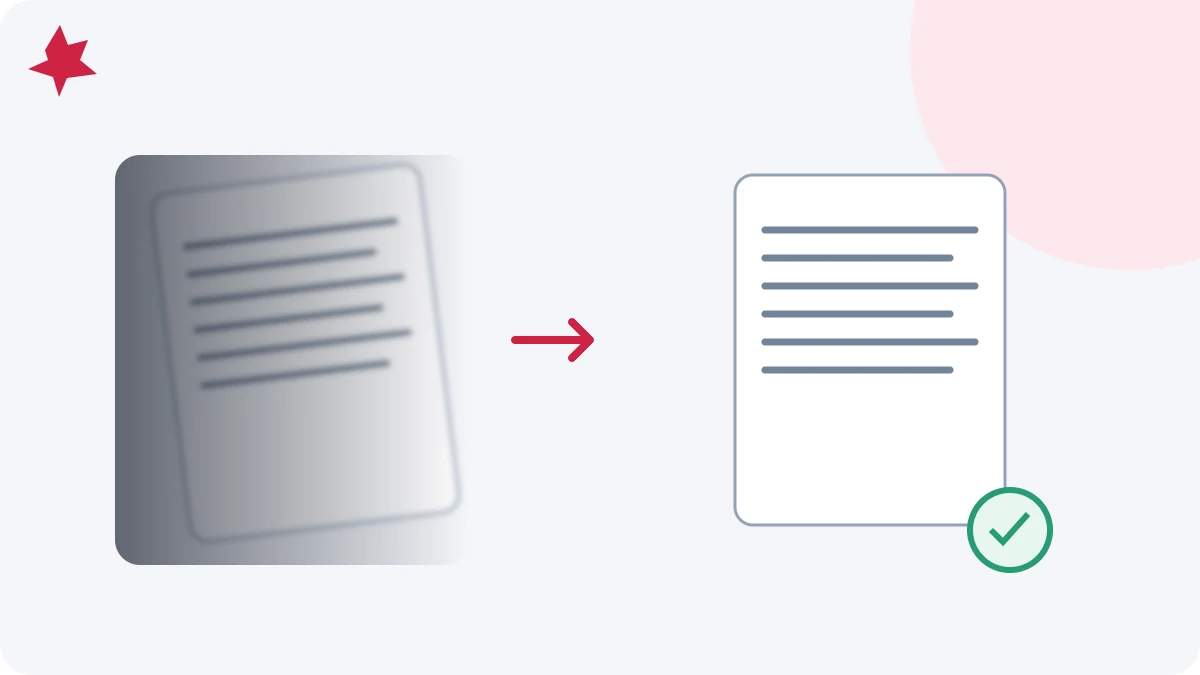
To improve OCR from a phone scan, make the printed letters sharp, upright and evenly lit before processing. Select the document's language and check the recognized text against the image. Repeating OCR on the same blurry picture is usually less useful than taking a better photograph.
Look at the error before changing settings
| What you see | Likely problem | Try next |
|---|---|---|
| Letters merge into soft shapes | Focus or motion blur | Retake the photo with a steady phone and check the small print |
| One side of the page is harder to read | Shadow, glare or uneven focus | Move the light or phone and flatten the page |
| Top lines are much smaller than bottom lines | Strong perspective | Hold the phone more parallel, then adjust the crop corners |
| Accented words are consistently wrong | Language mismatch or poor detail | Choose the printed language and inspect the accents |
| Values appear under the wrong headings | Table or column reading order | Compare rows manually; do not assume the extracted text is a spreadsheet |
Preserve useful detail
Use the original camera image rather than a screenshot of a messaging preview. Small fonts need enough visible detail to distinguish characters such as “rn” from “m” and “1” from “l”. Moving closer can help, provided the full page remains in the frame and the camera can focus.
A very large file is not automatically a good scan. A high-resolution blurred image still contains blurred letters. Inspect a short line at a comfortable zoom. If you cannot confidently read it, OCR may struggle too.
Fix lighting before applying filters
Use even light without a bright reflection across the text. For a folded receipt, flatten it gently where possible. Avoid a dark band from your hand or phone. Changing the camera position slightly can remove glare without requiring a stronger contrast filter.
In Scan to PDF, compare original color, grayscale and black-and-white output. A strong document filter can help clear print, but may erase pale pencil notes, colored marks or faint punctuation. Check the saved page rather than assuming a whiter background means better recognition.
Straighten and crop carefully
Place all four crop corners on the paper, not inside the first and last letters. Perspective correction can straighten an angled page. It cannot flatten the curved text near a book spine or recover a corner that was outside the photograph. Retake severely curved or clipped pages.
Use the rotation control so the words are upright. OCR can sometimes recognize rotated text, but an upright, rectangular page gives you a clearer reference for checking the result.
Choose the actual language
OCR PDF supports English, French and a combined English-and-French option. Choose both for a genuinely bilingual page; do not treat a language setting as a translation command. Proper names, abbreviations and reference codes still need manual review.
Handwriting, decorative fonts and complicated tables remain difficult cases. Check a representative page before processing a larger document. Review names, dates, amounts and decimal separators first, then check paragraph and column order.
Test the finished file
Search for a word you can see clearly on the page and copy a short sentence into a text editor. Compare it character by character. For an invoice, verify the reference and total separately. Keep the original image with the reviewed result. The OCR, text and Word comparison helps you decide whether recognition is even needed for your next step.