Scan to PDF with Your Phone
Scan paper with your phone, adjust page corners, correct perspective and combine photos into a PDF. Add optional OCR for searchable text.
Photographs are edited on your device. Only optional OCR uploads the finished PDF to PDFMaple. File handling and retention
1 Select your files
2 Process & download
Learn more about Scan to PDF with Your Phone
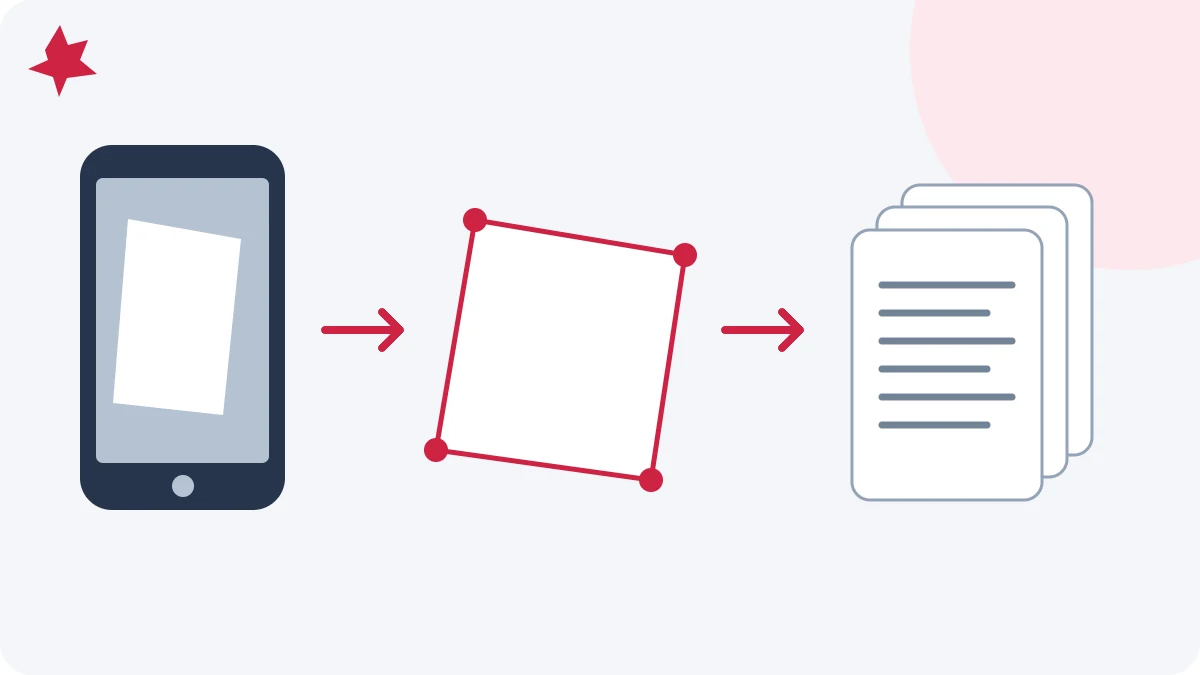
What Scan to PDF with Your Phone should help you finish
Scan to PDF with Your Phone helps with a focused PDF task that is easier to finish in the browser than in the original source application.
The useful result is a cleaner output that matches the next step in the workflow without forcing unnecessary rebuilding work.
When people use Scan to PDF with Your Phone
- Process a document directly in the browser without installing extra software.
- Prepare a file for sharing, printing, or archiving more efficiently.
- Fix a practical PDF problem quickly and move on with the rest of your workflow.
This workflow is most useful when the file content is broadly correct and the remaining job is specific to Scan to PDF with Your Phone.
How to use Scan to PDF with Your Phone in PDFMaple
- Upload the file or files you want to process.
- Choose the settings that match the result you need.
- Click Run tool and let processing finish without closing the tab mid-task.
- Open the result once before you share or archive it.
A short review before download catches most mistakes people make when they rush document cleanup.
Checks to run before download
- Open the result once before you share or archive it.
- Open the output once at normal zoom.
- Rename the result clearly before sharing it.
The fastest final review is the one that focuses on the detail the next person will notice first.
Mistakes that slow this workflow down
- Running the tool without checking whether the source file is the right version.
- Skipping the final review because the change felt too small to matter.
- Saving the result with a vague filename that is hard to identify later.
Clear naming and one calm final review step prevent a surprising number of avoidable document problems.
Handling and workflow notes
Review the finished output as if you were the recipient, especially if the file will be shared outside your immediate workflow.
Source quality still matters, so a cleaner export or a related cleanup tool may improve the final result if something looks off.