
Compare two PDFs and spot differences fast (visual diff)
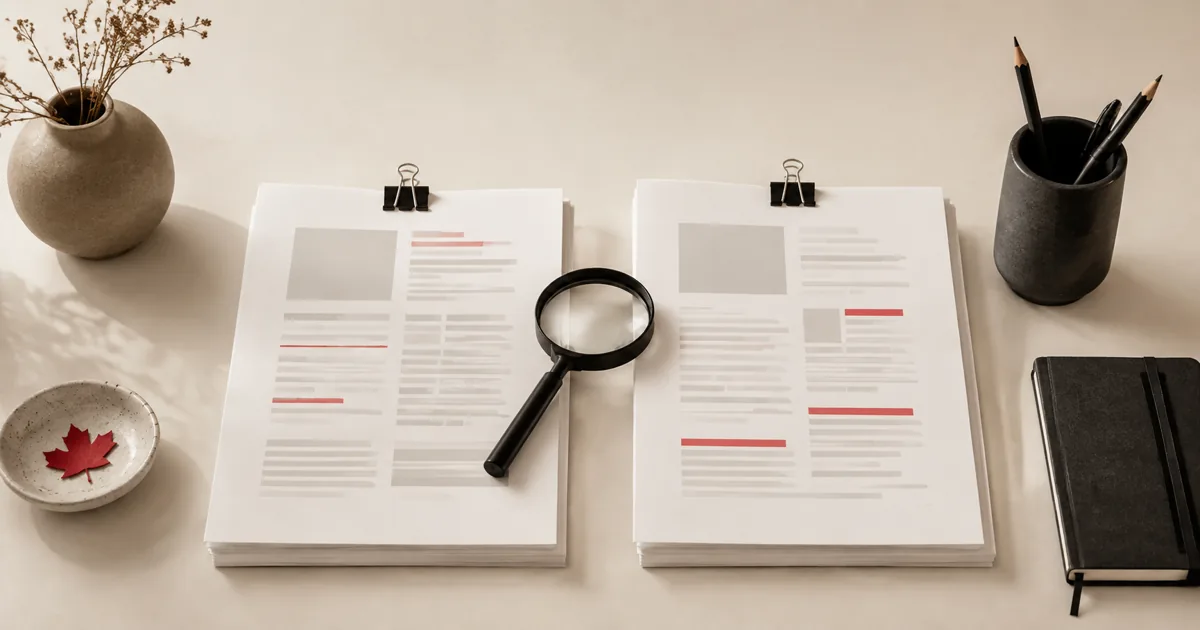
Need to compare PDFs and don’t want to wrestle with print dialogs or heavyweight desktop software? You can handle it directly in your browser. With PDFMaple’s Compare PDF tool, you upload your file, choose a couple of options, and download a polished result in minutes.
When to use Compare PDF
- Check changes between contract versions.
- Verify whether a supplier updated a document.
- Compare drafts of a report before final submission.
- Spot layout differences after conversion or compression.
Step-by-step: Compare PDF in PDFMaple
- Open Compare PDF and upload PDF A and PDF B.
- Choose a DPI (higher DPI shows finer differences).
- Run the tool to generate a visual comparison output.
- Download the comparison result and review highlighted differences.
Pro tips for better results
- Use 150 DPI for quick checks and 200–300 DPI for detailed review.
- If the PDFs have different page counts, compare section-by-section (extract pages first).
- For text-level changes, visual diff is best combined with manual spot checks.
- Repair PDFs first if one version won’t render properly.
Real-world use cases for compare two PDFs
The practical question is not whether the tool runs. It is whether the result is a clear view of what changed so you can decide whether the revision is acceptable.
Business and operations
Teams compare revised reports or proposals to confirm exactly what changed before approval or release. That keeps everyone reviewing the same page set in the same order instead of guessing which attachment is the final one.
Student projects
A student may compare draft and final exports to make sure corrections actually made it into the submission copy. That helps the instructor or portal see the exact pages you intended, without missing sections or duplicates.
Legal and admin work
Administrative and legal reviews often require a clear sense of what changed between two PDF versions. That creates a cleaner record because the shared copy matches the scope and order you meant to send.
Freelancer delivery
Freelancers use comparison to verify client edits, proof changes, or final revision requests before sign-off. That reduces follow-up because the client gets one tidy file instead of a package that still needs sorting.
Personal paperwork
People can compare two versions of a form or statement to see if a correction or update actually took effect. That makes the document easier for another person to review because the right pages are together and the extras are gone.
Expert tips that save rework
Page-management tasks create rework when selection, order, or scope are rushed. With compare two pdfs and spot differences fast (visual diff), the smartest check is the boring one: confirm that the right pages landed in the right sequence before anyone else opens the file.
- Compare the right versions: A compare result is only useful if you are looking at the correct old and new files. Good filenames and version notes matter here.
- Use visual comparison as a confirmation tool: The output tells you where to look, but you still need judgment about whether the change is acceptable or important.
- Watch layout shifts, not just text edits: A moved table, resized image, or shifted footer can matter just as much as rewritten words. Comparison is valuable because it catches both.
- Pair compare with page extraction when needed: If only two pages changed in a long document, extracting those pages after comparison can make the review easier for someone else.
- Archive the compared versions clearly: Once you know which file is approved, store the versions in a way that makes later retrieval obvious. Comparison is most useful when the version trail stays clear.
One final pass over flagged pages, visual differences, and whether the changes affect approval or delivery will catch most of the problems that create resend requests later.
Is it safe to upload your files?
With comparing two PDFs, most users are really asking whether the file is exposed during upload and whether the service hangs on to the contents afterward. PDFMaple handles the transfer over HTTPS/TLS, which protects the upload and download while the job is being completed. That is the practical baseline people want when the documents include things like contracts, policy drafts, client proofs, reports, and before-and-after revision copies.
Files are processed on our server to create your output. Ordinary conversion workspaces are removed after the response; interactive editing needs temporary session storage. Read the file retention and privacy details before uploading sensitive documents.
Online tool vs desktop software — which should you use?
An online workflow is usually the better choice when the task is short, you do not want to install anything, or you are away from your usual machine. It is especially convenient on shared computers, on mobile, or when you only need this exact job once. For comparing two PDFs, that usually means an online tool is enough when the task is occasional and deadline-driven.
The desktop route is stronger when you need deeper document comparison, annotation management, and enterprise review workflows. For routine document chores, though, the lighter online path is often the more sensible choice because it gets you to the output faster.
- One task, one result, no install
- Useful on shared or borrowed devices
- Quick enough for phone and tablet work
- Good when the file just needs to move forward
- Bulk processing and repeatable office routines
- Offline handling on managed devices
- Advanced editing, validation, or production control
- Regulated workflows with stricter policies
Frequently asked questions
Is this a text compare or a visual compare?
This tool produces a visual diff—great for layout and formatting changes, and also for spotting moved text. Open the final file and scan the thumbnails from start to finish so you catch any page-order or scope mistake before sharing it.
Why does DPI matter for comparing?
The compare output is based on rendered page images. Higher DPI renders more detail and catches subtle changes. Open the final file and scan the thumbnails from start to finish so you catch any page-order or scope mistake before sharing it.
Can I compare scanned PDFs?
Yes. Visual comparison works well on scanned pages because it compares appearance. Open the final file and scan the thumbnails from start to finish so you catch any page-order or scope mistake before sharing it.
What kinds of changes can PDF comparison reveal?
It can reveal wording changes, moved elements, missing pages, layout shifts, and other visible differences between two files. That makes it useful even when the source documents came from different apps. The compare output gives you a fast map of where to review more closely.
Is compare PDF useful for design proofs as well as text documents?
Yes. In fact, visual differences are often easier to catch in proofing workflows than by manual scanning. The tool helps when spacing, image placement, or small design edits matter.
Should I compare before I sign or approve a PDF?
Absolutely. Comparison is one of the best last checks before sign-off because it tells you whether the “final” version really matches what you expect. It is much faster than rereading everything from scratch.
What to do next
After comparing two PDFs, the next step is usually approving the revision, fixing the new version, or keeping a comparison record. The links below cover the most common follow-up moves for this workflow.