
How to build a paperless document workflow in 2026 (step-by-step)
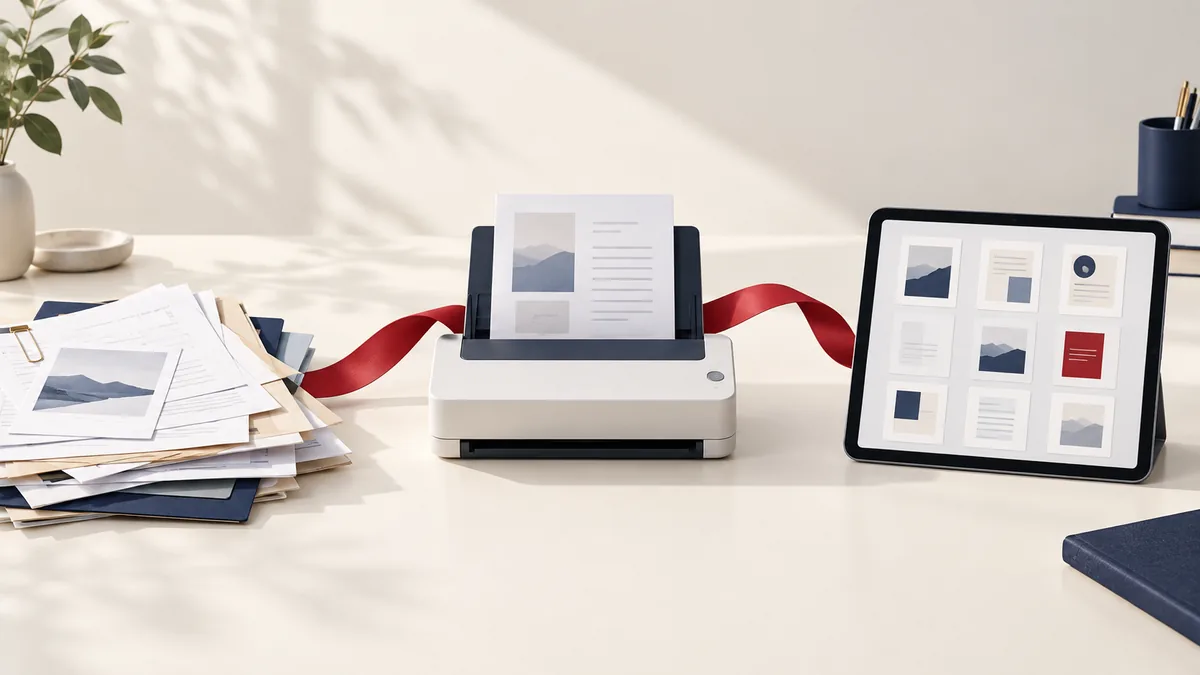
A paperless workflow is not just “scan everything.” The real value comes from turning a pile of document tasks into a predictable sequence: capture the file, organize it, convert it if needed, sign or protect it, and store the correct final version where people can find it later.
In 2026, the biggest mistake small teams still make is mixing working copies, signed copies, and archive copies together until nobody is sure which version is real. A better workflow is simple, named clearly, and repeatable enough that it survives busy weeks.
The paperless workflow
- Capture: create a clean digital starting point with JPG to PDF or an Office-to-PDF export.
- Organize: merge, split, extract, or remove pages so the file contains only what the workflow actually needs.
- Convert: move into Word, Excel, or another format only when editing or data reuse is necessary.
- Approve: use Sign PDF for the final sign-off copy.
- Protect: add a password or watermark if the file is moving through routine external channels.
- Archive: store the final version under a naming system that future you can still understand.
How it works for freelancers and small teams
The best paperless workflow for a small team is lighter than a full enterprise document-management system. It relies on clear stage names, sensible folders, and a short list of reliable tools. The more complicated the system becomes, the more often people fall back to printing, rescanning, and emailing mystery files called final-final.pdf.
Real-world use cases for a modern paperless workflow
The practical question is not whether the tool runs. It is whether the result is a modern document routine that stays workable across small teams, remote devices, and everyday approvals.
Business and operations
Small teams benefit when scanning, organizing, signing, and archiving follow the same repeatable digital steps each time. That gives the team a more stable handoff format for approvals, review, and storage.
Student projects
Students can keep course notes, forms, and submissions organized digitally instead of juggling paper and photos. That helps students choose the format that is least likely to create surprises when they submit or print.
Legal and admin work
Administrative workflows improve when intake, cleanup, signing, and storage happen in a deliberate sequence rather than as ad hoc rescans. That keeps records more predictable because the file format matches the way the document will actually be handled.
Freelancer delivery
Freelancers save time when contracts, briefs, approvals, and receipts all move through the same simple PDF-based process. That makes client-facing files easier to review because the format is chosen for handoff rather than ongoing editing.
Personal paperwork
A paperless routine makes household records easier to find, share, and store without rebuilding the same packet every time. That usually means fewer resend requests because the document is in a format built for sharing and recordkeeping.
Expert tips that save rework
The mistake is usually not misunderstanding a feature name; it is picking the wrong format or workflow for the job. With how to build a paperless document workflow in 2026 (step-by-step), the useful check is whether the file is ready for sharing, editing, printing, or archiving—the outcome you actually need.
- Define the stages once: A good paperless workflow usually has the same rhythm: capture, organize, clean up, sign or protect, then archive. Repetition is the point.
- Use the smallest right tool at each step: Do not overcomplicate the system. Merge when you need one file, split when you need sections, and protect only when the final file actually needs it.
- Name files like future you will need them: Dates, subjects, and version hints matter more than vague names like scan1 or final-final.
- Keep working and archive copies separate: A file still in review should not be mistaken for the long-term copy. Clear naming and folder logic save a lot of confusion.
- Review before you store: Archive the version you would actually be comfortable reopening six months later. That standard keeps the system useful.
Use the finished copy the way a real recipient would—open it, scroll it, maybe upload it—before you assume the workflow is done. That final reality check is where most avoidable issues are caught.
Is it safe to upload your files?
Questions about running a paperless document workflow usually come down to three things: encryption in transit, how long the files exist on the service, and whether the provider does anything with the contents beyond the job you requested. PDFMaple processes uploads and downloads over HTTPS/TLS, so the transfer itself is protected while the task runs. That is the practical baseline people want when the documents include things like receipts, contracts, intake forms, approvals, and small-team operating paperwork. This matters even more in 2026 cases, where small workflow mistakes are easier to miss.
Files are processed on our server to create your output. Ordinary conversion workspaces are removed after the response; interactive editing needs temporary session storage. Read the file retention and privacy details before uploading sensitive documents.
Online tool vs desktop software — which should you use?
Online tools make the most sense when speed and convenience matter more than deep control. They fit well when the task is occasional, the file has to be fixed right now, or the device in front of you is not the one you normally use for document work. For running a paperless document workflow, that usually means an online tool is enough when the task is occasional and deadline-driven. That is especially true when the job is 2026 rather than a broad recurring workflow.
The desktop route is stronger when you need heavier document management systems, offline records work, and policy-driven retention environments. For routine document chores, though, the lighter online path is often the more sensible choice because it gets you to the output faster.
- One task, one result, no install
- Useful on shared or borrowed devices
- Quick enough for phone and tablet work
- Good when the file just needs to move forward
- Bulk processing and repeatable office routines
- Offline handling on managed devices
- Advanced editing, validation, or production control
- Regulated workflows with stricter policies
Frequently asked questions
What is the first step in a paperless document workflow?
Capture the document in a clean digital form, whether that means scanning paper or exporting from the source app. A messy first step creates rework later. The cleaner the intake, the easier every later stage becomes.
How many PDF tools should a simple paperless workflow use?
Usually only a few core ones: image to PDF or Office to PDF for intake, organize tools for cleanup, and security tools when sharing requires them. The goal is not to use many tools. The goal is to use the right ones at the right stage.
Should I sign before I archive?
If the document needs a signature, yes, because the signed copy is often the true final record. Archive the version that reflects the real state of the workflow, not an earlier draft.
What makes a paperless system sustainable instead of messy?
Consistent naming, a clear stage order, and a habit of reviewing the final output before storage. Without those three things, digital paperwork becomes a different kind of clutter.
What is the biggest mistake people make with paperless document workflow?
The biggest mistake is treating running a paperless document workflow like a throwaway step. Most rework starts when people skip a final check of whether each stage is simple enough to repeat and whether final files are named and stored clearly, assume the output is fine, and send it immediately. Thirty seconds of review is usually cheaper than a resend.
What should I review before I share the final output?
Review whether each stage is simple enough to repeat and whether final files are named and stored clearly before you send or upload the file. Those are the details the next person will notice first, and they are also the ones most likely to trigger a resend request. If those parts look right, the workflow is usually in good shape.
What to do next
Once this part is done, the workflow normally shifts to tightening the routine so capture, review, signing, and archive steps stay consistent. Use the links below if that is what you need next.