
Office to PDF best practices: Word, Excel, and PowerPoint sharing guide
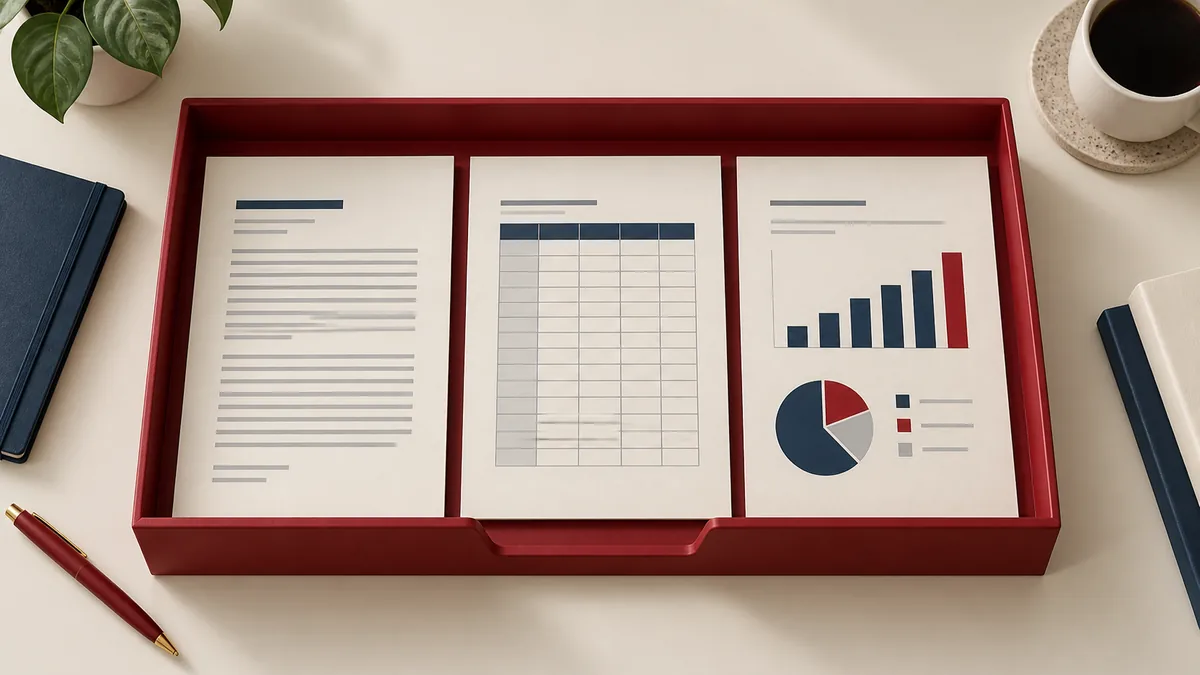
Converting Word, Excel, and PowerPoint files to PDF is one of the easiest ways to ensure recipients see your document exactly as you intended. PDFs freeze layout, reduce “it looks different on my machine” problems, and make printing far more predictable.
This guide covers practical export tips plus a fast conversion workflow with PDFMaple.
Why convert Office documents to PDF?
- Layout consistency: fonts, spacing, and pagination are locked in.
- Fewer compatibility issues: recipients don’t need the same Office version.
- Print-ready output: PDFs behave better with printers and print shops.
- Read-only sharing: great for proposals, brochures, and reports.
Word → PDF tips
- Use styles for headings so spacing is consistent.
- Prefer page breaks over manual spacing with blank lines.
- If you need archiving/compliance, export as PDF/A.
Excel → PDF tips
- Set the print area to avoid exporting empty columns.
- Use landscape for wide tables.
- Check scaling (fit to width) to prevent awkward page breaks.
PowerPoint → PDF tips
- Keep text large enough for mobile viewing.
- Remember: animations don’t transfer—PDF captures the final slide view.
- For drafts, watermark the PDF so it isn’t mistaken for final.
Fast conversions with PDFMaple
- Word to PDF — also supports PDF/A output.
- Excel to PDF — great for print-ready sharing.
- PowerPoint to PDF — consistent slide export.
After conversion, you can optimize or secure the PDF with Compress PDF, Add watermark, or Protect PDF.
Try it now: Start with Word to PDF and get a clean, shareable file in minutes.
Real-world use cases for Office to PDF best practices
Exporting office documents to pdf is rarely about the feature alone. It is about getting to a PDF that preserves the parts the reader actually depends on: layout, tables, or slide design.
Business and operations
Teams routinely convert Office files to PDF so the shared copy looks stable across devices and inboxes. That gives the team a more stable handoff format for approvals, review, and storage.
Student projects
Students benefit from knowing when Word, Excel, and PowerPoint each need a different export check before submission. That helps students choose the format that is least likely to create surprises when they submit or print.
Legal and admin work
Administrative offices often export formal letters, schedules, and slide materials into PDFs for review and retention. That keeps records more predictable because the file format matches the way the document will actually be handled.
Freelancer delivery
Freelancers use Office-to-PDF habits to keep proposals, budgets, and decks polished when they leave the editable source app. That makes client-facing files easier to review because the format is chosen for handoff rather than ongoing editing.
Personal paperwork
People also export resumes, household sheets, and simple slide decks when the recipient expects a clean PDF rather than an editable file. That usually means fewer resend requests because the document is in a format built for sharing and recordkeeping.
Expert tips that save rework
The mistake is usually not misunderstanding a feature name; it is picking the wrong format or workflow for the job. With office to pdf best practices: word, excel, and powerpoint sharing guide, the useful check is whether the file is ready for sharing, editing, printing, or archiving—the outcome you actually need.
- Review the PDF, not just the Office file: Word, Excel, and PowerPoint each have different export pain points. The final review has to happen on the PDF itself.
- Match the check to the app: Word needs page-break and font checks, Excel needs scaling and print-area checks, and PowerPoint needs font and slide-edge checks.
- Keep a working copy in the source format: The PDF is for sharing; the DOCX, XLSX, or PPTX is often still the best file for future edits.
- Do not treat every Office export the same: A one-page letter and a wide spreadsheet have different risks. A useful workflow respects that difference.
- Compress only after the export is correct: Get the PDF right first, then reduce size if email or portal limits require it.
If you only have time for one review, check page breaks, fit-to-page settings, fonts, speaker notes, and hidden sheets or slides. That is usually the point where a rushed handoff creates avoidable back-and-forth.
Online tool vs desktop software — which should you use?
For most one-off jobs, the browser is the fastest path because the file can be fixed and downloaded without a longer software setup cycle. That matters most when you are on a borrowed machine, a phone, or a laptop that does not have Acrobat installed. For exporting Office documents to PDF, that usually means an online tool is enough when the task is occasional and deadline-driven.
Desktop software such as Adobe Acrobat earns its place when the work involves full office-suite workflows, repeated batch exports, and offline business environments. That kind of control is hard to justify for a quick fix, but it matters when the same document task shows up every day or under strict compliance rules.
- Best for one-off document chores
- Practical on mobile or remote setups
- No extra software to maintain
- Good when speed matters more than deep control
- Bulk processing and repeatable office routines
- Offline handling on managed devices
- Advanced editing, validation, or production control
- Regulated workflows with stricter policies
Frequently asked questions
Why does my PDF look different from the Word/Excel file?
Most differences come from fonts, page size, or print settings. Use standard fonts and set margins/page size clearly before conversion. The safest habit is to look at the actual file you plan to share and ask whether PDF is the right format for that job.
Should I compress my PDF?
If you’re emailing or uploading to the web, yes—compression can improve speed. For print shop work, use higher quality settings. The safest habit is to look at the actual file you plan to share and ask whether PDF is the right format for that job.
Can I convert a PDF back to Office?
Yes. PDFMaple includes PDF to Word , PDF to Excel , and PDF to PowerPoint for reverse workflows. The safest habit is to look at the actual file you plan to share and ask whether PDF is the right format for that job.
More practical PDF tips from the PDFMaple Blog.
- PDF vs PDF/A: which format should you use (and why)? — Understand when to use standard PDF vs archival PDF/A and how it affects compliance and long-term storage.
- How to reduce PDF size without losing quality (7 practical tips) — Reduce file size while keeping text crisp and images readable: compression choices, DPI, and export settings.
- A simple paperless workflow with PDFs: scan, organize, sign, and store — A practical paperless process: scan to PDF, organize documents, sign files, and keep everything searchable.
Why do Word, Excel, and PowerPoint PDFs fail in different ways?
Because each source app is built around a different kind of layout. Word is text-flow driven, Excel is grid-and-page-break driven, and PowerPoint is slide driven. The export issues reflect those different design models.
Which Office file is usually the hardest to convert cleanly to PDF?
Excel is often the most demanding because tables and page scaling create immediate readability trade-offs. But “hardest” depends on the document. A complex Word file or animation-heavy deck can also cause trouble.
Should I protect Office PDFs before sending them?
Only if the content or the workflow calls for it. Security should respond to the sensitivity of the document, not just become an automatic step on every export.
What to do next
Once this part is done, the workflow normally shifts to sharing, protecting, or archiving the exported document. Use the links below if that is what you need next.