
Turn phone receipts into a readable reimbursement PDF
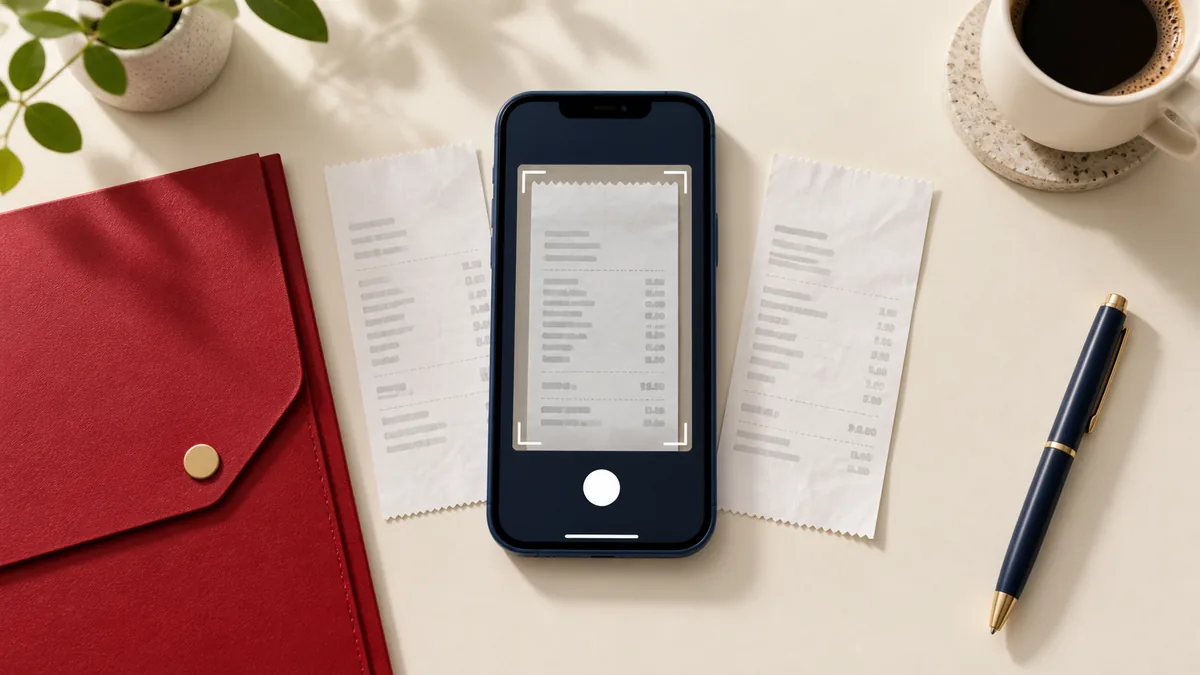
A reimbursement reviewer needs to connect each expense to a readable receipt. A single PDF can make that easier, provided the order matches the expense list and each image includes the information needed to understand the transaction.
Capture the details before building the file
Flatten the receipt and photograph it in even light. Include its edges, merchant, date, total and currency. Avoid a bright reflection across thermal paper. Open the image and zoom in on the smallest amount; if you cannot read it comfortably, converting it to PDF will not help.
For a long receipt, capture overlapping sections rather than shrinking the entire strip until the text becomes tiny. Keep enough overlap to show how the sections connect, and put them next to each other in the final sequence. Follow your organization's receipt requirements instead of assuming one photo is always sufficient.
Use an order the reviewer can follow
If an expense sheet lists a taxi, lunch and hotel in that order, place the corresponding receipts in that order too. A multi-page hotel invoice should remain together. Do not mix personal purchases into the packet simply because they share the same camera folder.
An illustrative five-image packet might contain one taxi receipt, one lunch receipt and three hotel pages. Write down that expected count before selecting files. Give the source images distinct names if the camera's automatic names are difficult to distinguish.
Create and inspect the PDF
- Open JPG to PDF and select the images.
- Arrange the receipts to match the expense list and choose suitable page options.
- Download the PDF and inspect every image at a readable zoom.
- Check for clipped totals, upside-down pages and accidentally repeated photos.
Image conversion does not perform accounting reconciliation or prove that a receipt supports a claim. It also does not automatically turn printed text into searchable text. Keep the original images according to your own record-keeping requirements.
Reduce size without losing the evidence
If the upload limit requires it, use Compress PDF on a copy. Recheck the smallest receipt after compression. A large white margin can make a page look sharp while the merchant details and tax amounts are no longer legible.
Before submitting, compare the final page count with your inventory and verify that the expense reference or filename is correct. Review personal details that are not needed by the recipient; do not obscure transaction information required for reimbursement. Read the file-handling policy before uploading documents that contain sensitive account data.
Straighten receipts before combining them
Scan to PDF lets you adjust four corners, correct perspective and arrange saved pages. Review faint totals before using black-and-white enhancement. Add optional OCR only if searchable text will help your records.