
JPG to PDF for printing: order, margins, and size
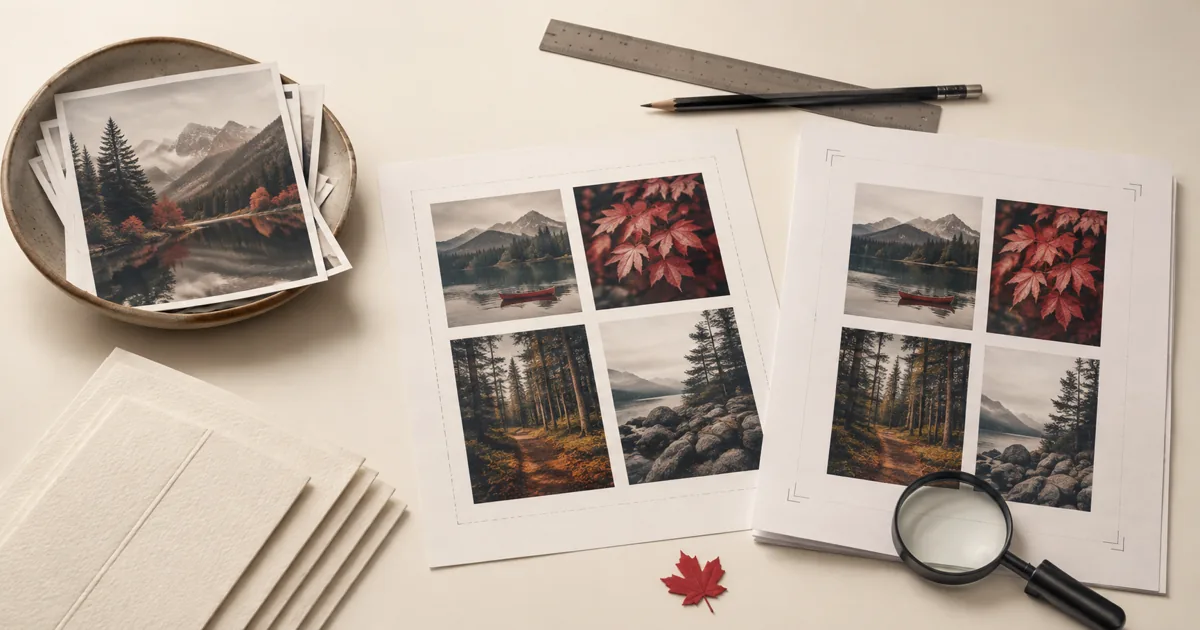
Printing a folder of photos is easier when everything is in a single PDF—especially for document photos, scanned receipts, or signed pages captured on a phone.
This guide shows how to combine JPG images into a PDF using JPG to PDF, then fine-tune the result for printing and sharing.
- When printing from JPGs makes sense
- Step-by-step: JPG to PDF
- Order, margins, and file size tips
- Real-world use cases for JPG to PDF printing workflows
- Expert tips that save rework
- Is it safe to upload your files?
- Online tool vs desktop software — which should you use?
- Frequently asked questions
- What to do next
When printing from JPGs makes sense
- Phone photos of documents that must be submitted as one PDF
- Receipts, IDs, and forms captured as images
- Multi-page “scan” apps that output separate JPG files
Step-by-step: JPG to PDF
- Open JPG to PDF.
- Upload your JPG images (select multiple files at once).
- Reorder the images if needed (make sure page 1 comes first).
- Convert and download the PDF.
- Open the PDF and verify orientation (no upside-down pages).
Order, margins, and file size tips
1) Rename files before uploading (fast ordering)
If your images are named randomly, rename them like 01.jpg, 02.jpg, 03.jpg.
This makes ordering painless—especially when you have many pages.
2) Crop and rotate before conversion
The cleanest PDFs come from clean images. Crop out background, rotate to correct orientation, and use good lighting. Conversion can’t fix a blurry photo.
3) Avoid huge PDFs
High-resolution phone photos can create very large PDFs. After converting, run the PDF through Compress PDF.
4) Need one file from multiple image types?
If you have PNGs and JPGs mixed together, convert them separately with PNG to PDF and JPG to PDF, then merge with Merge PDF.
Real-world use cases for JPG to PDF printing workflows
The real value shows up when the file has to work for the next person on the first try. For this workflow, the target is a printable PDF whose image order, margins, and page size feel intentional rather than accidental.
Business and operations
Teams often combine photos of receipts, whiteboards, or signed forms into one PDF so they can be filed with the rest of a project record. That matters because the recipient gets a format they can open and review without asking for the source app or original file.
Student projects
A student may photograph handwritten work and turn the images into one PDF for a cleaner upload to the course portal. That is useful when the portal or reviewer expects a specific format and layout has to stay predictable.
Legal and admin work
Administrative staff often receive ID images, signed pages, or evidence photos that need to be packaged into one stable document. That helps preserve a cleaner handoff because the document arrives in a format built for stable viewing and printing.
Freelancer delivery
A freelancer can turn mood boards, sketches, or annotated screenshots into a single PDF that is easier for a client to review than a zip of images. That gives clients a version they can read quickly without accidentally editing the working file.
Personal paperwork
People use image-to-PDF workflows for receipts, forms, apartment applications, and any situation where the recipient wants one document instead of several pictures. That turns loose images or office files into one clearer document that is easier to upload, print, or store.
Expert tips that save rework
Conversion problems rarely come from the click itself. With jpg to pdf for printing: order, margins, and size, the real risk is source-file quirks, print settings, or layout drift that no one notices until the output is already shared.
- Sort the images first: The final PDF is only as organized as the image order you upload. Rename or reorder the files before conversion so the output reads correctly from page one.
- Crop or straighten obvious mistakes before conversion: A PDF is easier to share than a folder of photos, but it will not magically fix a crooked or badly framed source image. Clean inputs still matter.
- Keep print size in mind: Phone photos can look sharp on screen and still print oddly if margins, orientation, or aspect ratio are ignored. Review a representative page if printing matters.
- Avoid mixing wildly different image dimensions when possible: Very different source sizes can make the PDF feel inconsistent. When the workflow allows it, use images with roughly similar orientation and framing.
- Compress after conversion if necessary: If the new PDF is bigger than your email or upload limit, compress the PDF rather than re-exporting all the images from scratch.
Keep the original nearby, name the converted output clearly, and compare the pages most likely to drift before you forward it. That small habit prevents layout surprises from turning into a resend.
Is it safe to upload your files?
Questions about turning images into a PDF usually come down to three things: encryption in transit, how long the files exist on the service, and whether the provider does anything with the contents beyond the job you requested. PDFMaple processes uploads and downloads over HTTPS/TLS, so the transfer itself is protected while the task runs. That is the practical baseline people want when the documents include things like receipts, photographed forms, whiteboards, sketches, ID images, and phone scans. This matters even more in printing cases, where small workflow mistakes are easier to miss.
Files are processed on our server to create your output. Ordinary conversion workspaces are removed after the response; interactive editing needs temporary session storage. Read the file retention and privacy details before uploading sensitive documents.
Online tool vs desktop software — which should you use?
An online workflow is usually the better choice when the task is short, you do not want to install anything, or you are away from your usual machine. It is especially convenient on shared computers, on mobile, or when you only need this exact job once. For turning images into a PDF, that usually means an online tool is enough when the task is occasional and deadline-driven. That is especially true when the job is printing rather than a broad recurring workflow.
The desktop route is stronger when you need print layout tuning, color correction, and multi-page photo preparation. For routine document chores, though, the lighter online path is often the more sensible choice because it gets you to the output faster.
- Fast fixes without a longer software setup
- Works when you are not on your main computer
- Simple handoff for occasional tasks
- Convenient for quick review-and-send jobs
- Bulk processing and repeatable office routines
- Offline handling on managed devices
- Advanced editing, validation, or production control
- Regulated workflows with stricter policies
Frequently asked questions
Will the PDF print at the right size?
Printing depends on your printer dialog. If the image doesn’t fill the page, try “Fit to page” or adjust scaling. Open the converted output and compare the pages most likely to drift—tables, slide layouts, page breaks, or image-heavy sections—before you rely on it.
Can I convert multiple JPGs into one PDF?
Yes. Upload multiple images and convert—they’ll become pages in one PDF. Open the converted output and compare the pages most likely to drift—tables, slide layouts, page breaks, or image-heavy sections—before you rely on it.
What if my images are out of order?
Reorder them before converting, or rename files with leading numbers (01, 02, 03) for predictable ordering. Open the converted output and compare the pages most likely to drift—tables, slide layouts, page breaks, or image-heavy sections—before you rely on it.
How do I reduce the PDF size after conversion?
Use Compress PDF . It’s the fastest way to make a photo-based PDF shareable. Open the converted output and compare the pages most likely to drift—tables, slide layouts, page breaks, or image-heavy sections—before you rely on it.
Is JPG to PDF better than sending image attachments?
Often, yes. A PDF gives the recipient one file to open, one file to print, and a fixed page order. Separate image attachments are easy to misplace or review out of sequence.
Will converting images to PDF reduce image quality?
It can, depending on the source image and any later compression choices, but a standard image-to-PDF conversion usually keeps the pages readable. The real quality losses usually come from low-resolution originals or aggressive compression after the fact. Start with the cleanest images you have.
What to do next
Once this part is done, the workflow normally shifts to compression, page cleanup, or sending the document as a finished packet. Use the links below if that is what you need next.