
HTML to PDF: convert web pages and HTML files into PDFs
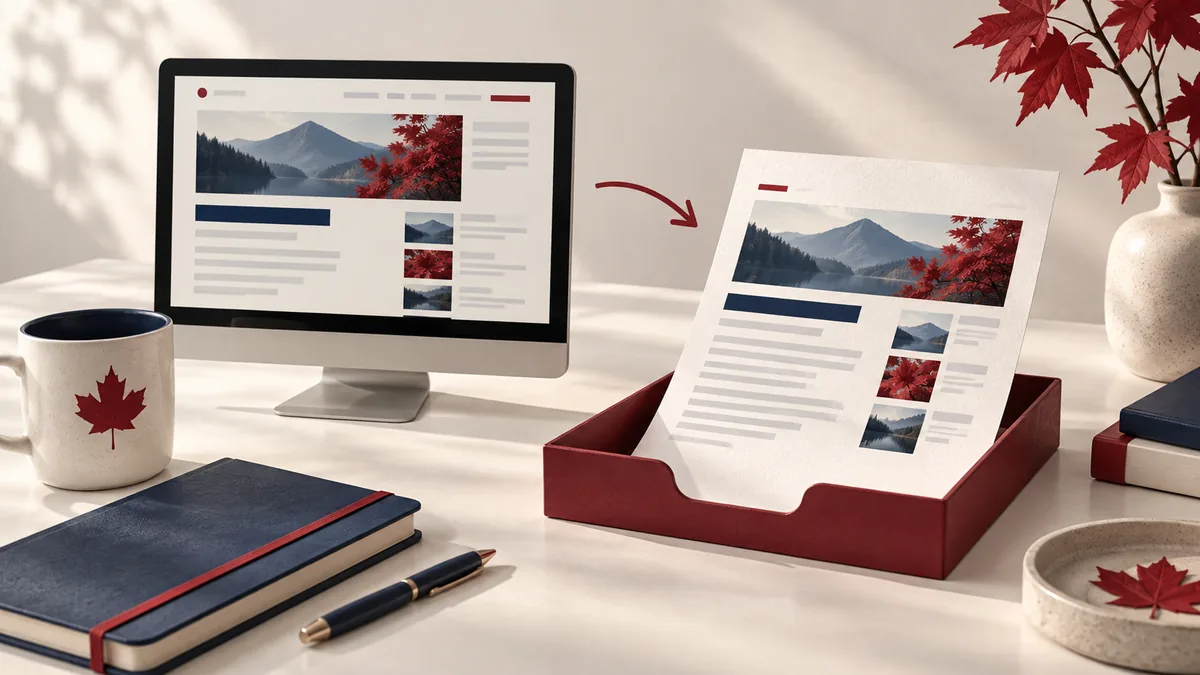
HTML to PDF is one of those “small” PDF tasks that comes up constantly—then suddenly you’re stuck. Whether you’re trying to HTML to PDF for work, study, or personal documents, this step-by-step tutorial shows you how to do it quickly with PDFMaple.
When to use HTML to PDF
- Convert a locally saved HTML page into a shareable PDF.
- Create PDF reports from HTML exports.
- Archive a web-based invoice or receipt.
- Generate a printable PDF version of a webpage.
Step-by-step: HTML to PDF in PDFMaple
- Open HTML to PDF and upload your
.htmlfile. - Run the tool to render the HTML into a PDF layout.
- Download the PDF and check page breaks.
- If needed, adjust your HTML/CSS (print styles) and convert again.
Pro tips for better results
- Use a print stylesheet (
@media print) to control margins and hide navigation. - Keep image URLs accessible; broken images can affect the final PDF.
- For long pages, add CSS page breaks (e.g.,
page-break-before). - After conversion, compress if the PDF is too large.
Real-world use cases for HTML to PDF
Converting html to pdf is rarely about the feature alone. It is about getting to a PDF that captures the right content and remains readable when shared away from the live page.
Business and operations
Teams often need a PDF copy of an internal page, report dashboard, or customer-facing confirmation screen for records. That matters because the recipient gets a format they can open and review without asking for the source app or original file.
Student projects
A student may convert an HTML project page, reference material, or notes page into PDF for offline review or submission. That is useful when the portal or reviewer expects a specific format and layout has to stay predictable.
Legal and admin work
Administrative staff sometimes capture policy pages, receipts, or web confirmations as PDFs for documentation. That helps preserve a cleaner handoff because the document arrives in a format built for stable viewing and printing.
Freelancer delivery
Freelancers can convert a portfolio page or project status page to PDF when a client wants a portable review copy. That gives clients a version they can read quickly without accidentally editing the working file.
Personal paperwork
People commonly save booking confirmations, payment receipts, or application summary pages as PDFs instead of relying on a live webpage later. That turns loose images or office files into one clearer document that is easier to upload, print, or store.
Expert tips that save rework
Conversion problems rarely come from the click itself. With html to pdf: convert web pages and html files into pdfs, the real risk is source-file quirks, print settings, or layout drift that no one notices until the output is already shared.
- Think in print layout terms: Responsive webpages are designed for flexible screens, not always for fixed PDF pages. Review long tables, floating elements, and wide images after conversion.
- Capture the final state of the page: If the webpage has tabs, expanded sections, or generated content, make sure the view you want is visible before conversion. The PDF only records what is rendered.
- Avoid cluttered browser chrome in screenshots: A proper HTML-to-PDF flow is cleaner than taking a manual screenshot because it captures the page content rather than browser interface elements.
- Check page breaks on long content: Terms, invoices, and tables can break awkwardly across PDF pages. Review any place where context might be lost at a page break.
- Save the source URL in your notes: A PDF snapshot is useful, but future review is easier when you also know which live page it came from and when it was captured.
If you only have time for one review, check missing assets, print styling, page breaks, and whether the page captured the right state. That is usually the point where a rushed handoff creates avoidable back-and-forth.
Is it safe to upload your files?
Questions about converting HTML to PDF usually come down to three things: encryption in transit, how long the files exist on the service, and whether the provider does anything with the contents beyond the job you requested. PDFMaple processes uploads and downloads over HTTPS/TLS, so the transfer itself is protected while the task runs. That is the practical baseline people want when the documents include things like web reports, receipts, statements, reference pages, and HTML exports from business systems.
The files are intended to be removed automatically after processing, and PDFMaple does not read, sell, or keep the contents as a standing document library. For the full policy wording and limits, see the Privacy Policy. That matters most for files such as web reports, receipts, statements, reference pages, and HTML exports from business systems.
Online tool vs desktop software — which should you use?
For most one-off jobs, the browser is the fastest path because the file can be fixed and downloaded without a longer software setup cycle. That matters most when you are on a borrowed machine, a phone, or a laptop that does not have Acrobat installed. For converting HTML to PDF, that usually means an online tool is enough when the task is occasional and deadline-driven.
The desktop route is stronger when you need advanced print CSS work, scripted rendering, and local development workflows. For routine document chores, though, the lighter online path is often the more sensible choice because it gets you to the output faster.
- Fast fixes without a longer software setup
- Works when you are not on your main computer
- Simple handoff for occasional tasks
- Convenient for quick review-and-send jobs
- Large recurring jobs
- Deeper correction and document inspection
- Offline-only environments
- Teams that need standardized desktop procedures
Frequently asked questions
Does HTML to PDF support external CSS and images?
It depends on how the HTML references assets. For best results, keep assets reachable and avoid scripts that require user interaction. Open the converted output and compare the pages most likely to drift—tables, slide layouts, page breaks, or image-heavy sections—before you rely on it.
Why do my pages break awkwardly?
PDF uses fixed page sizes. Add print CSS rules to control breaks and margins. Open the converted output and compare the pages most likely to drift—tables, slide layouts, page breaks, or image-heavy sections—before you rely on it.
Can I convert a URL directly?
This tool converts HTML files. If you need a URL, save it as HTML first, then convert. Open the converted output and compare the pages most likely to drift—tables, slide layouts, page breaks, or image-heavy sections—before you rely on it.
Why convert HTML to PDF instead of printing from the browser?
A dedicated HTML-to-PDF workflow is usually cleaner and more predictable than an ad hoc print dialog. It can preserve the page as a portable document and reduce the chance of capturing browser interface clutter. It is also easier to store and forward later.
Will the PDF look exactly like the live webpage?
Not always. Responsive layouts, web fonts, and dynamic page elements can behave differently in a fixed-page PDF format. That is why long tables, images, and expandable sections should be reviewed after conversion.
Is HTML to PDF good for archiving web confirmations?
Yes, especially for receipts, submission confirmations, and policy pages you may need later. A PDF gives you a portable record even if the live page changes or disappears. Just make sure the key details are visible in the captured output.
What to do next
Once this part is done, the workflow normally shifts to archiving the snapshot, sharing it, or protecting it before circulation. Use the links below if that is what you need next.