
PDF security checklist: protect, watermark, and redact before you share
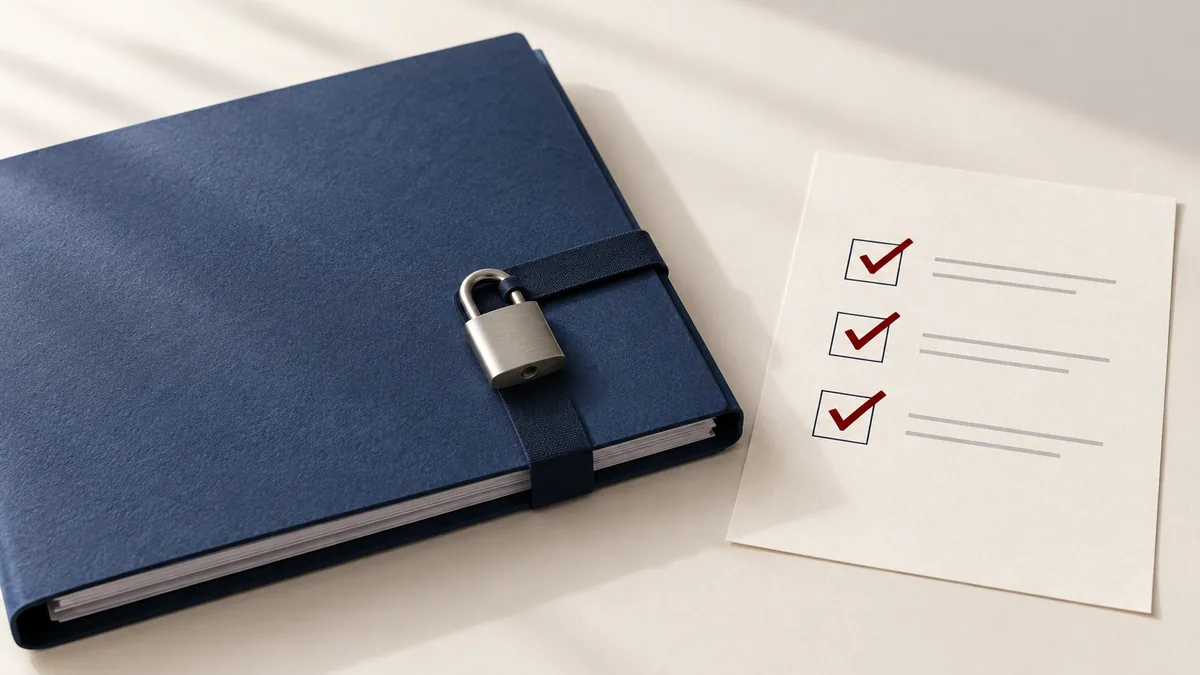
PDFs are often treated as “safe to share,” but they can easily leak private details if you don’t check the content first. A single page with an address, account number, or internal note can cause real trouble—especially when files are emailed, uploaded, or posted publicly.
Use this checklist before you share a PDF outside your organization. It’s quick, practical, and built around tools you already have in PDFMaple.
Common PDF sharing risks
- Accidentally sending extra pages (attachments, internal notes, older versions).
- Leaving sensitive text visible (names, IDs, financial details).
- Sharing drafts without a clear “DRAFT” label.
- Sending the file without access control (anyone can open it).
The PDF security checklist
- Share only what’s necessary: Use Extract pages or Remove pages.
- Redact sensitive fields: Use Redact PDF for text-based redaction.
- Add a watermark for drafts: Use Add watermark (e.g., CONFIDENTIAL, INTERNAL, DRAFT).
- Password-protect when appropriate: Use Protect PDF and share the password separately.
- Sign when you need approvals: Use Sign PDF for a clear signature stamp.
- Compare versions before sending: Use Compare PDF to spot accidental changes.
Recommended PDFMaple workflow (3 minutes)
- Trim pages: extract/remove.
- Redact sensitive text.
- Watermark if needed.
- Password-protect for confidential files.
Best practice: never send the password in the same email as the protected PDF. Use a second channel (chat, phone call, password manager share).
Real-world use cases for PDF security checklist
Reviewing pdf security before sharing is rarely about the feature alone. It is about getting to a shareable file that exposes only what you intend and reaches the right audience.
Business and operations
Teams benefit from a repeatable checklist before pricing sheets, HR files, or internal reports leave the company. That keeps the handoff tighter because access controls are applied before the document reaches inboxes, shared drives, or client threads.
Student projects
Students can use a security checklist before sharing forms or portfolios that include personal details. That matters because the file often contains personal information and still has to reach the reviewer without creating avoidable access problems.
Legal and admin work
Administrative offices need clear review habits when personal or confidential information is involved. That supports cleaner recordkeeping because the protected copy is the one that actually leaves the office or enters the portal.
Freelancer delivery
Freelancers often share drafts, contracts, and sample work that should not be handled casually by recipients. That gives the client a cleaner, more controlled handoff instead of a sensitive file moving around unprotected.
Personal paperwork
People sharing IDs, account statements, or application packets need a simple routine that reduces avoidable mistakes. That reduces exposure in ordinary digital channels where sensitive personal documents are often shared more casually than they should be.
Expert tips that save rework
Security workflows fail less often on the encryption step than on the handoff around it. With pdf security checklist: protect, watermark, and redact before you share, the checks that matter most are the right file, the right protection settings, and a quick test in a fresh viewer before the document leaves your control.
- Start with scope: The safest file is often the smallest correct file. Remove or extract pages before you think about passwords or watermarks.
- Redact instead of merely hiding: If the recipient should not see information, remove it properly. Cosmetic cover-ups are not enough.
- Use watermarking to communicate status: Drafts and confidential copies benefit from visible handling signals, even when a password is also used.
- Protect at the end of the workflow: Password-protect the final version you actually plan to send, not a draft you still need to change.
- Share the password separately: A protected PDF is stronger when the password does not travel in the same channel as the file.
Treat the finished file as the release copy, not a temporary test. Reopen it in a fresh viewer, confirm the security behavior, and only then send the document or hand the password to the recipient.
Online tool vs desktop software — which should you use?
For most one-off jobs, the browser is the fastest path because the file can be fixed and downloaded without a longer software setup cycle. That matters most when you are on a borrowed machine, a phone, or a laptop that does not have Acrobat installed. For reviewing PDF security before sharing, that usually means an online tool is enough when the task is occasional and deadline-driven.
The desktop route is stronger when you need policy-based controls, large review programs, and offline regulated environments. For routine document chores, though, the lighter online path is often the more sensible choice because it gets you to the output faster.
- Fast fixes without a longer software setup
- Works when you are not on your main computer
- Simple handoff for occasional tasks
- Convenient for quick review-and-send jobs
- Bulk processing and repeatable office routines
- Offline handling on managed devices
- Advanced editing, validation, or production control
- Regulated workflows with stricter policies
Frequently asked questions
Is password protection enough?
Password protection controls access, but it doesn’t remove sensitive fields. Redact first, then protect. Permission still matters, and the next step of the workflow should justify creating a less restricted copy.
Is watermarking security?
Watermarking is a visible label. It helps prevent mistakes and clarifies status, but it doesn’t restrict access. The safest check is to reopen the file in a fresh viewer and confirm that the lock, signature, or redaction behaves the way you expect.
Should I keep an original copy?
Yes. Keep your original and save a “shared” version separately so you don’t accidentally distribute the wrong file later. The safest check is to reopen the file in a fresh viewer and confirm that the lock, signature, or redaction behaves the way you expect.
What is the first security step before sharing a PDF?
Reduce the document to the correct scope. Remove or extract pages the recipient does not need. A smaller, more focused file is easier to secure and less likely to leak extra information.
Do I always need a password on a PDF?
Not always. Password protection is useful, but the right answer depends on the sensitivity of the file and the sharing context. Sometimes clean scope control and proper redaction matter even more.
When should I redact instead of watermark?
Redact when specific information must disappear from the shared copy. Watermark when you want to label the file’s status or confidentiality level. The two tools solve different problems.
What to do next
After reviewing PDF security before sharing, the next step is usually making the last-minute security decisions before the file leaves your hands. The links below cover the most common follow-up moves for this workflow.