
Redact a PDF: hide sensitive text the right way
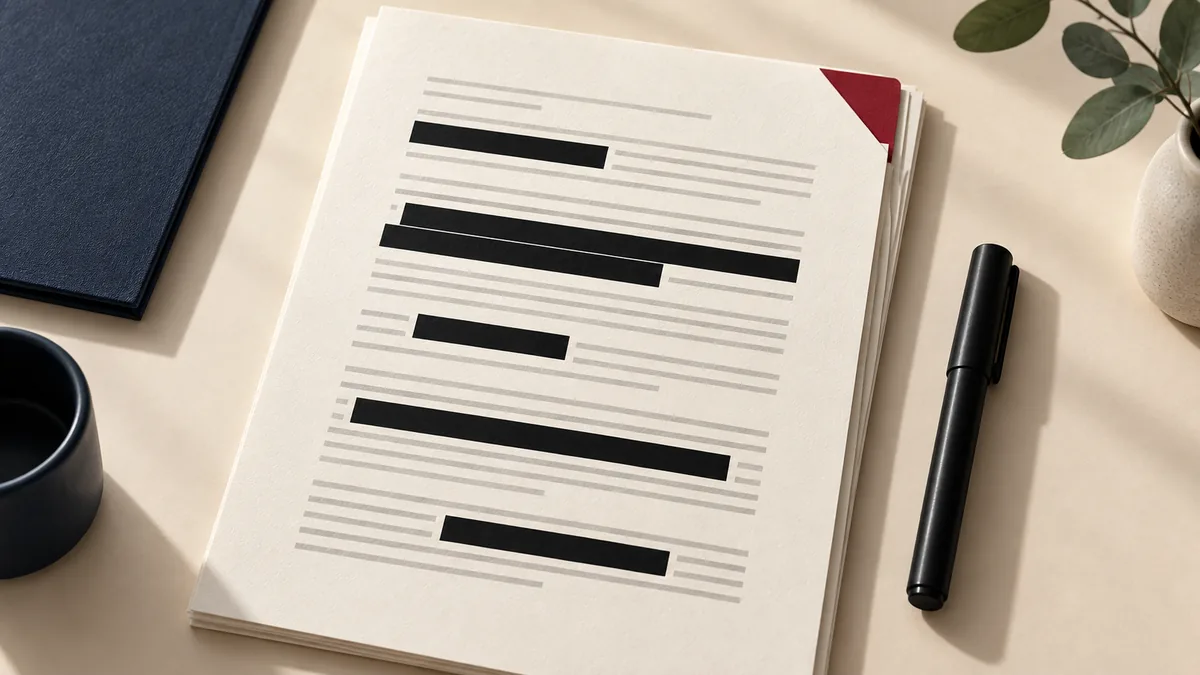
If you’re dealing with client documents, school submissions, or internal reports, small PDF issues can turn into big delays. The good news: tasks like redact PDF are predictable and repeatable. This guide walks you through a reliable workflow using PDFMaple’s Redact PDF tool.
When to use Redact PDF
- Hide names, addresses, or account numbers before sharing.
- Remove confidential terms from a contract draft.
- Mask sensitive identifiers in medical or HR documents.
- Prepare a PDF for public posting.
Step-by-step: Redact PDF in PDFMaple
- Open Redact PDF and upload the PDF you want to sanitize.
- Enter the text you want to redact (the tool will search for matches).
- Run the tool to apply redaction boxes over matching text.
- Download the redacted PDF and review it carefully.
Pro tips for better results
- Always review the output page-by-page to confirm sensitive data is hidden.
- Redaction is not the same as deleting a page—use Remove Pages when needed.
- If you only need to share a subset, extract pages first, then redact.
- For extra protection, watermark the redacted file as “REDACTED COPY”.
Real-world use cases for redact a PDF
Redacting a pdf is rarely about the feature alone. It is about getting to an output where the confidential information is truly gone and the rest of the file remains usable.
Business and operations
Teams redact customer data, internal references, or account details before sharing a document outside the company. That keeps the handoff tighter because access controls are applied before the document reaches inboxes, shared drives, or client threads.
Student projects
Students may need to hide personal information on forms or portfolio material before uploading them publicly. That matters because the file often contains personal information and still has to reach the reviewer without creating avoidable access problems.
Legal and admin work
Administrative and legal workflows regularly require sensitive names, IDs, or contact details to be removed before release. That supports cleaner recordkeeping because the protected copy is the one that actually leaves the office or enters the portal.
Freelancer delivery
Freelancers can redact confidential client details before using a document as a sample or case study. That gives the client a cleaner, more controlled handoff instead of a sensitive file moving around unprotected.
Personal paperwork
People often need to hide account numbers, addresses, or other private details when sending paperwork to a third party. That reduces exposure in ordinary digital channels where sensitive personal documents are often shared more casually than they should be.
Expert tips that save rework
Security workflows fail less often on the encryption step than on the handoff around it. With redact a pdf: hide sensitive text the right way, the checks that matter most are the right file, the right protection settings, and a quick test in a fresh viewer before the document leaves your control.
- Redaction is not the same as drawing a black box: A visual cover-up can leave the underlying text intact. Real redaction needs to remove the information from the shared output.
- Work from a copy: Keep the original unredacted document in a safe place. The redacted version is for sharing, not for replacing your master file.
- Check every page after redaction: Names and IDs often repeat. Do not assume you found every instance on the first page where it appeared.
- Think about metadata and attachments too: Sensitive information is not always only in the visible body text. If the workflow is high-stakes, review the whole sharing context carefully.
- Protect after redacting if necessary: Redaction removes what should not be seen. Protection adds an extra layer for the information that remains in the file.
Treat the finished file as the release copy, not a temporary test. Reopen it in a fresh viewer, confirm the security behavior, and only then send the document or hand the password to the recipient.
Is it safe to upload your files?
Questions about redacting a PDF usually come down to three things: encryption in transit, how long the files exist on the service, and whether the provider does anything with the contents beyond the job you requested. PDFMaple processes uploads and downloads over HTTPS/TLS, so the transfer itself is protected while the task runs. That is the practical baseline people want when the documents include things like legal material, HR documents, customer records, case notes, and review copies.
Once the output is created, the uploaded files and generated results are meant to be removed automatically, and PDFMaple does not use document contents as a data asset to sell or retain. The detailed policy is in the Privacy Policy. That matters most for files such as legal material, HR documents, customer records, case notes, and review copies.
Online tool vs desktop software — which should you use?
An online workflow is usually the better choice when the task is short, you do not want to install anything, or you are away from your usual machine. It is especially convenient on shared computers, on mobile, or when you only need this exact job once. For redacting a PDF, that usually means an online tool is enough when the task is occasional and deadline-driven.
Adobe Acrobat still makes more sense when you need advanced review, batch redaction, and regulated disclosure workflows, or when the files must stay in a tightly managed offline environment. If the job is occasional and practical, online is usually enough; if it is repetitive and highly controlled, desktop has the edge.
- One task, one result, no install
- Useful on shared or borrowed devices
- Quick enough for phone and tablet work
- Good when the file just needs to move forward
- Bulk processing and repeatable office routines
- Offline handling on managed devices
- Advanced editing, validation, or production control
- Regulated workflows with stricter policies
Frequently asked questions
Is redaction permanent?
The goal is to make sensitive text unreadable. Always verify by zooming in and searching the output PDF. The safest check is to reopen the file in a fresh viewer and confirm that the lock, signature, or redaction behaves the way you expect.
What if the sensitive info is in an image?
Text-based redaction works on selectable text. If the content is embedded in images, you may need image-based redaction or a different workflow. The safest check is to reopen the file in a fresh viewer and confirm that the lock, signature, or redaction behaves the way you expect.
Should I also password-protect redacted PDFs?
Often yes, especially if the PDF still contains private context. Redaction protects specific fields; encryption controls access. Permission still matters, and the next step of the workflow should justify creating a less restricted copy.
Why is redaction different from adding a black shape over text?
Because a black shape may only hide the text visually while leaving the underlying content recoverable. True redaction is about removing the sensitive information from the shared output. That difference matters whenever confidentiality is real and not just cosmetic.
What should I redact from a PDF before sharing?
Names, addresses, account numbers, ID numbers, signatures, internal references, and any other information the recipient does not need are common examples. The correct answer depends on the sharing purpose. If the information is not necessary for the next person, it is a candidate for redaction.
Should I redact before or after protecting the file?
Redact first. Remove the sensitive information, review the cleaned file, and then add password protection if the remaining content still needs access control. That order keeps the workflow logical.
What to do next
This task is usually one step in a longer document process. Most people go from redacting a PDF into sharing the sanitized copy, protecting it, or preserving an internal unredacted original.