
Highlight and annotate a PDF online (no installs)
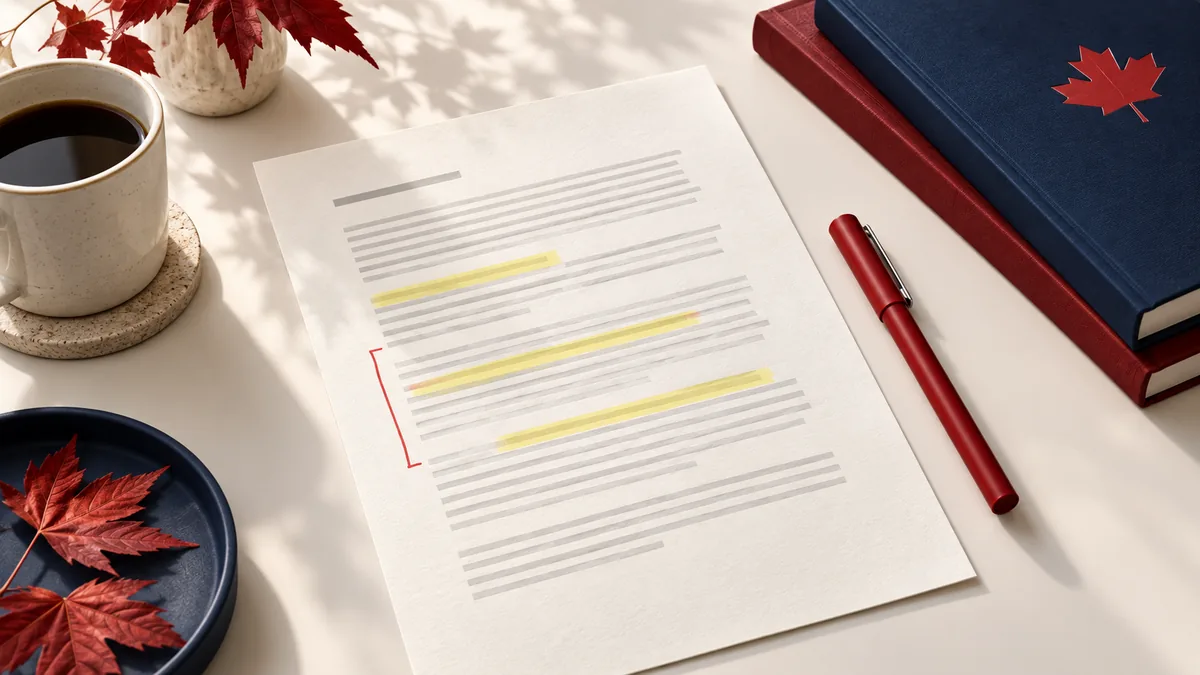
Whether you’re reviewing a contract, grading homework, or collaborating on a proposal, annotations keep feedback attached to the page. With Edit PDF, you can highlight text, add notes, draw, and export an updated copy—without installing software.
When PDF annotation helps
- Reviewing and approving documents (highlight key clauses)
- Adding comments for teammates or clients
- Marking corrections on forms or drafts
- Preparing a PDF before signing
Step-by-step: highlight and annotate
- Open Edit PDF and upload your file.
- Select the Highlight tool and drag across the text you want to emphasize.
- Use Notes or Text to add comments (keep them short and specific).
- Use Shapes (arrows/rectangles) to point to exact areas.
- Download the updated PDF and review it in a standard PDF reader to confirm everything displays correctly.
Tips for clean, readable markups
1) Use consistent colors
Pick one color for “must fix,” another for “nice to have.” Too many colors makes the review harder to follow.
2) Keep highlights thin
Overly thick highlights can obscure text (especially on small fonts). Zoom in and re‑highlight if needed.
3) Don’t forget the final steps
- If you need to sign after marking up: use Sign PDF.
- If you need to share securely: apply a password with Protect PDF.
4) Make the file easy to track
Rename outputs like proposal-reviewed-v1.pdf or contract-comments.pdf.
Versioned filenames prevent confusion in email threads.
Real-world use cases for annotate a PDF online
Highlighting and annotating a pdf is rarely about the feature alone. It is about getting to annotations that are easy for the next reader to spot and understand.
Business and operations
Teams annotate PDFs during review cycles so everyone can see what needs revision without editing the source file directly. That prevents a small presentation or labeling issue from turning into a resend when the document is already near the finish line.
Student projects
Students highlight readings and add notes to handouts when they want a portable marked-up study copy. That helps the submitted version look intentional and complete instead of obviously last-minute.
Legal and admin work
Administrative teams often mark up policies, forms, or draft letters before the final approved version is released. That matters because even tiny visual corrections can affect how easy a record is to review later.
Freelancer delivery
Consultants and designers use annotations to direct a client’s attention to specific pages or issues during feedback. That keeps the delivered copy polished without sending the client back into the source file.
Personal paperwork
People may annotate PDFs to flag what still needs to be signed, filled in, or followed up later. That makes the final file easier to read and use without forcing you into a bigger editing workflow.
Expert tips that save rework
Light PDF edits feel simple, but tiny placement or visibility mistakes are exactly what cause resend requests. With highlight and annotate a pdf online (no installs), the review that matters most is whether the change sits where the next person expects to see it.
- Use highlights sparingly: If everything is highlighted, nothing stands out. Mark only the passages that matter for the current review round.
- Keep notes actionable: Comments like “fix this” are weaker than “replace the outdated pricing table on page 7.” Specific notes save time.
- Separate reading marks from approval marks: A study highlight and a business-review note serve different purposes. Be clear about whether you are studying, revising, or approving.
- Annotate on the version everyone will review: Comments lose value if they land on an outdated draft. Make sure the file itself is the right revision before you start marking it up.
- Export and review the annotated copy: Do not assume every annotation landed where you meant. One quick pass through the exported PDF confirms the markup is readable.
If you only have time for one review, check whether each highlight or note lands on the intended text and exports cleanly. That is usually the point where a rushed handoff creates avoidable back-and-forth.
Is it safe to upload your files?
With highlighting and annotating a PDF, most users are really asking whether the file is exposed during upload and whether the service hangs on to the contents afterward. PDFMaple handles the transfer over HTTPS/TLS, which protects the upload and download while the job is being completed. That is the practical baseline people want when the documents include things like proofs, class notes, design reviews, contracts, and internal feedback copies.
Files are processed on our server to create your output. Ordinary conversion workspaces are removed after the response; interactive editing needs temporary session storage. Read the file retention and privacy details before uploading sensitive documents.
Online tool vs desktop software — which should you use?
An online workflow is usually the better choice when the task is short, you do not want to install anything, or you are away from your usual machine. It is especially convenient on shared computers, on mobile, or when you only need this exact job once. For highlighting and annotating a PDF, that usually means an online tool is enough when the task is occasional and deadline-driven.
The desktop route is stronger when you need heavier review workflows, comment management, and offline markup needs. For routine document chores, though, the lighter online path is often the more sensible choice because it gets you to the output faster.
- Best for one-off document chores
- Practical on mobile or remote setups
- No extra software to maintain
- Good when speed matters more than deep control
- Complex editing beyond the immediate task
- Managed enterprise or compliance setups
- Heavier production workflows
- Situations where local-only control is required
Frequently asked questions
Will annotations show up in Adobe Reader and other viewers?
In most cases, yes. Always open the exported file in a standard viewer to confirm your highlights and notes appear as expected. Open the result once more and inspect the pages you changed so you know the edit sits exactly where you intended.
Can I remove or edit highlights later?
It depends on how the PDF is saved and which app you use later. Some workflows “flatten” annotations. If you need future edits, keep an unflattened copy and avoid re‑exporting through tools that rasterize pages. Open the result once more and inspect the pages you changed so you know the edit sits exactly where you intended.
Can I annotate a scanned PDF?
Yes—you can draw, highlight, and add notes. But you generally can’t select or edit the underlying text without OCR. Open the result once more and inspect the pages you changed so you know the edit sits exactly where you intended.
Is this the same as adding text to a PDF?
Adding text is one part of editing. For a focused walkthrough, see How to add text to a PDF . Open the result once more and inspect the pages you changed so you know the edit sits exactly where you intended.
When should I annotate a PDF instead of editing it?
Annotate when the goal is review, feedback, or emphasis rather than full document revision. It keeps the original content intact while still making the issues visible. That is ideal for shared review cycles and study notes.
Can I annotate a PDF on a shared computer?
Yes, and that is one of the strengths of an online tool. You can handle a quick review task without installing software. Just remember to download the result and close out responsibly when the computer is not yours.
What to do next
This task is usually one step in a longer document process. Most people go from highlighting and annotating a PDF into sending feedback or using the marked-up copy during review.