
Remove blank pages from a duplex scan safely
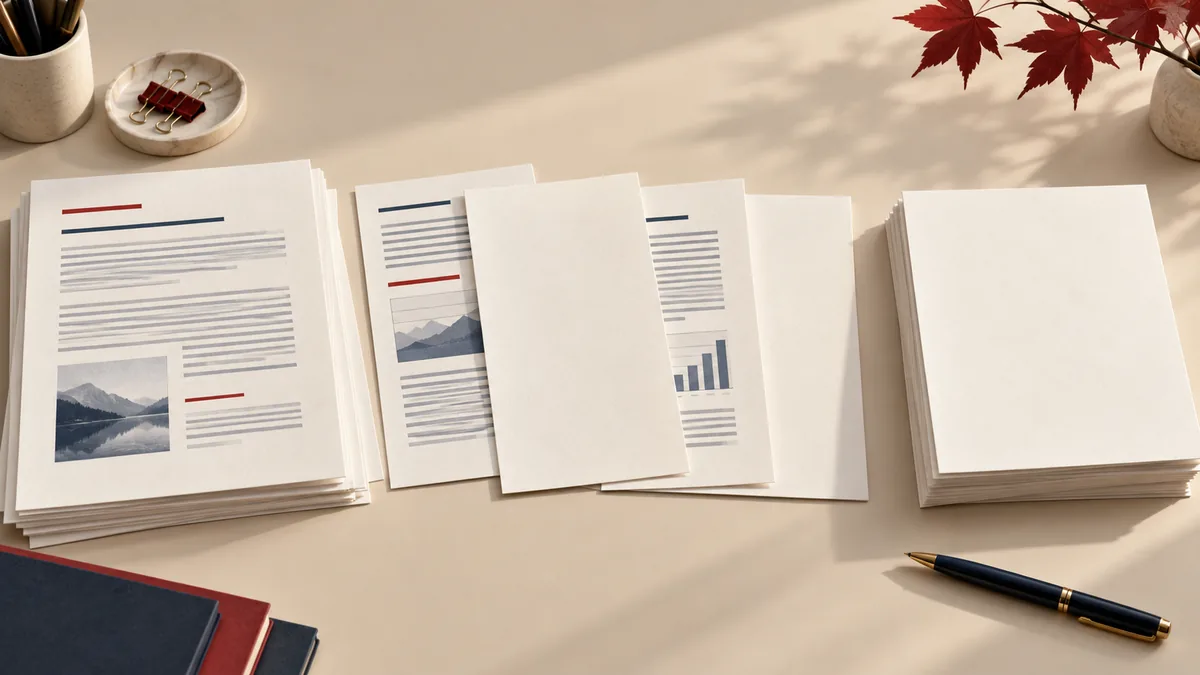
Double-sided scanning often produces an apparently blank page after each one-sided sheet. Removing those pages makes a packet easier to read, but a page that looks empty in a thumbnail is not always disposable. Faint stamps, pencil notes and continuation labels are easy to miss.
Separate PDF position from printed page number
Suppose a six-sheet scan becomes twelve PDF pages. The empty backs might occupy positions 2, 4, 6, 8, 10 and 12, but do not enter that pattern until you have inspected all six backs. One original could have a note on its reverse. Page-removal controls refer to positions in the PDF, not a number printed at the bottom of the source.
Make a small list with three columns: PDF position, what is visible, and keep/remove. This is particularly helpful when a scan includes a cover sheet that shifts the rest of the numbering.
Inspect beyond the thumbnail
Open each suspected blank at a readable zoom. Look near the edges and corners, where scanners may have captured a date stamp or an initial. A page can also look blank because the scan is too pale. If the original is available, compare it before deleting anything.
Keep intentionally blank pages when they matter to the document's structure or the recipient's instructions. For example, a printing workflow may rely on a new section starting on a right-hand page. A shorter file is not automatically a better file.
Remove only confirmed positions
- Keep the original scan unchanged.
- Open Remove pages and select the PDF.
- Enter the positions you confirmed as unnecessary, using the syntax shown by the tool.
- Download the cleaned copy under a different filename.
If pages also need rearranging, use Organize PDF and verify the final reading order. Avoid remembering positions from an earlier version: after a deletion, later pages move.
Check the result against your inventory
The expected page count is the original count minus the number removed. In the twelve-page example, removing five confirmed blanks should leave seven pages, not six. Inspect the page before and after every deletion; this catches a mistaken position faster than scrolling through the output without a plan.
Read across paragraph and table boundaries. Confirm that the first and last content pages survived. If the result is meant for printing, preview it with the intended duplex settings before deciding that every empty page was unnecessary.
For further page selection examples, see extracting selected pages. Page deletion is not redaction: sensitive text on retained pages still needs a separate review.